Zoom Integration
Overview
This integration shows your Maestra captions inside Zoom. When you run a live session in Maestra, your transcription is sent to Zoom as closed captions that everyone in the meeting can read. If you're translating, the translated text is what shows up.
It works with Zoom's caption API. You copy a caption token from your Zoom meeting, paste it into Maestra, and you're ready to go.
How it works
There are three steps:
- Step 1: Turn on third-party captions in your Zoom account settings. You only do this once.
- Step 2: In your Zoom meeting, turn on the manual captioner and copy the caption token.
- Step 3: Paste the token into Maestra, connect, and start a session.
1. Turn on third-party captions in Zoom
You only need to do this once. Open Zoom in your browser. You will need access to change your meeting settings.
Open your Zoom meeting settings
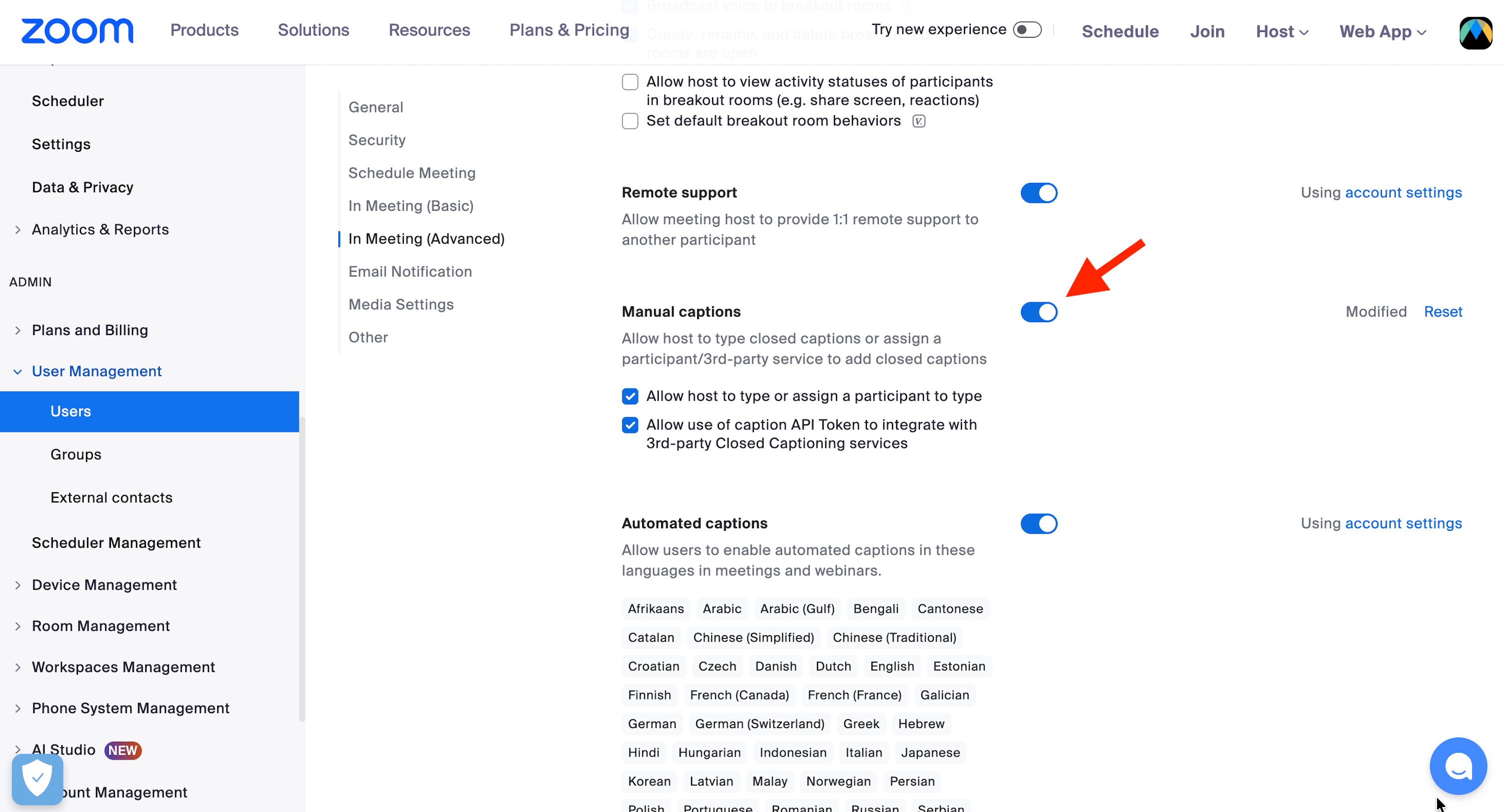
Sign in at zoom.us and go to Settings → Meeting → In Meeting (Advanced).
Turn on manual captions
Switch on the Manual captions toggle.
Allow the caption token
Tick the box that says "Allow use of caption API Token to integrate with 3rd-party Closed Captioning services".
2. Get your caption token in Zoom
Do this inside the Zoom meeting you want to caption. You need to be the host.
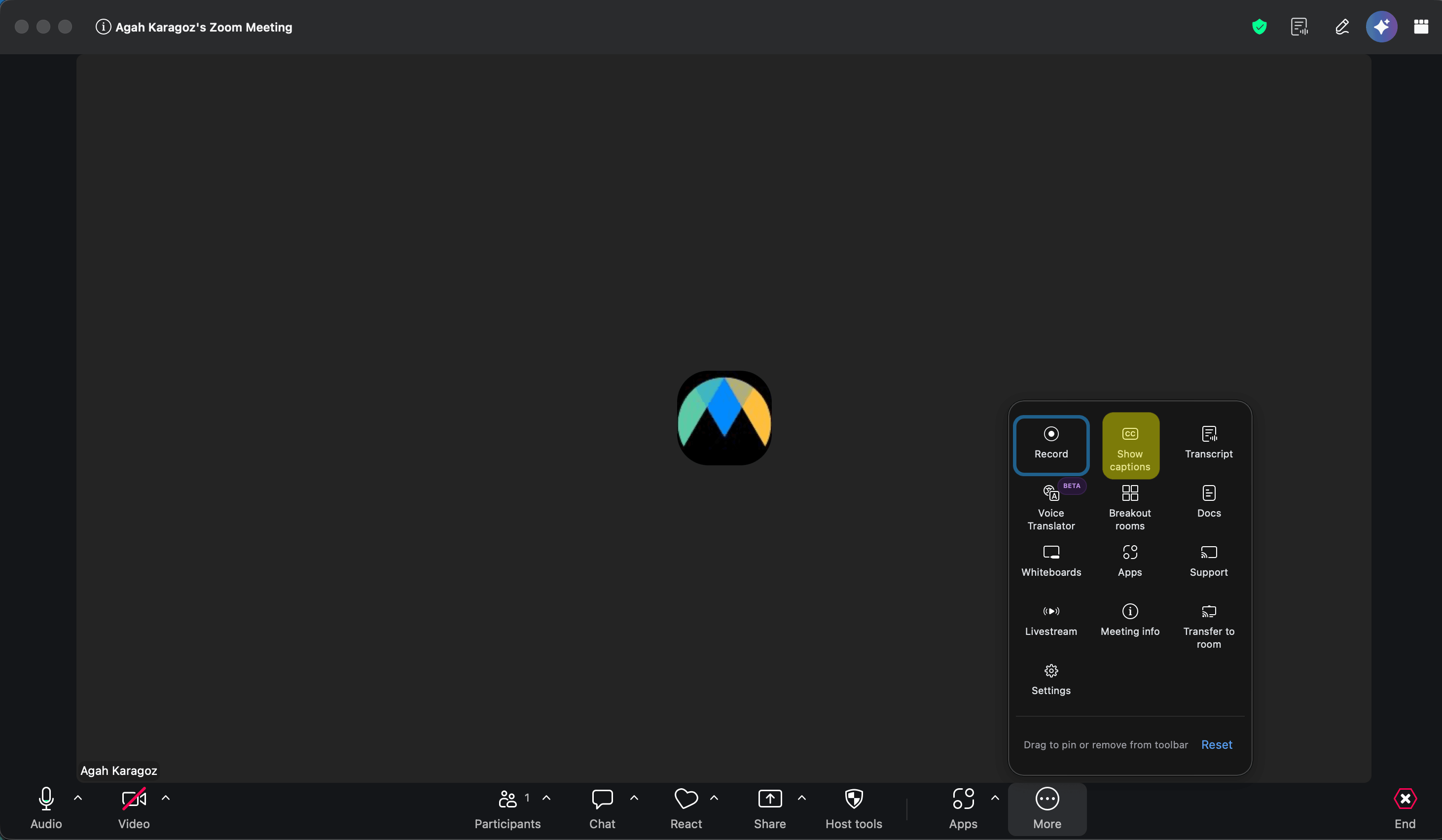
Open captions in the meeting
In the meeting toolbar, click More and choose Show captions. If the Captions button is already on your toolbar, you can click that instead.
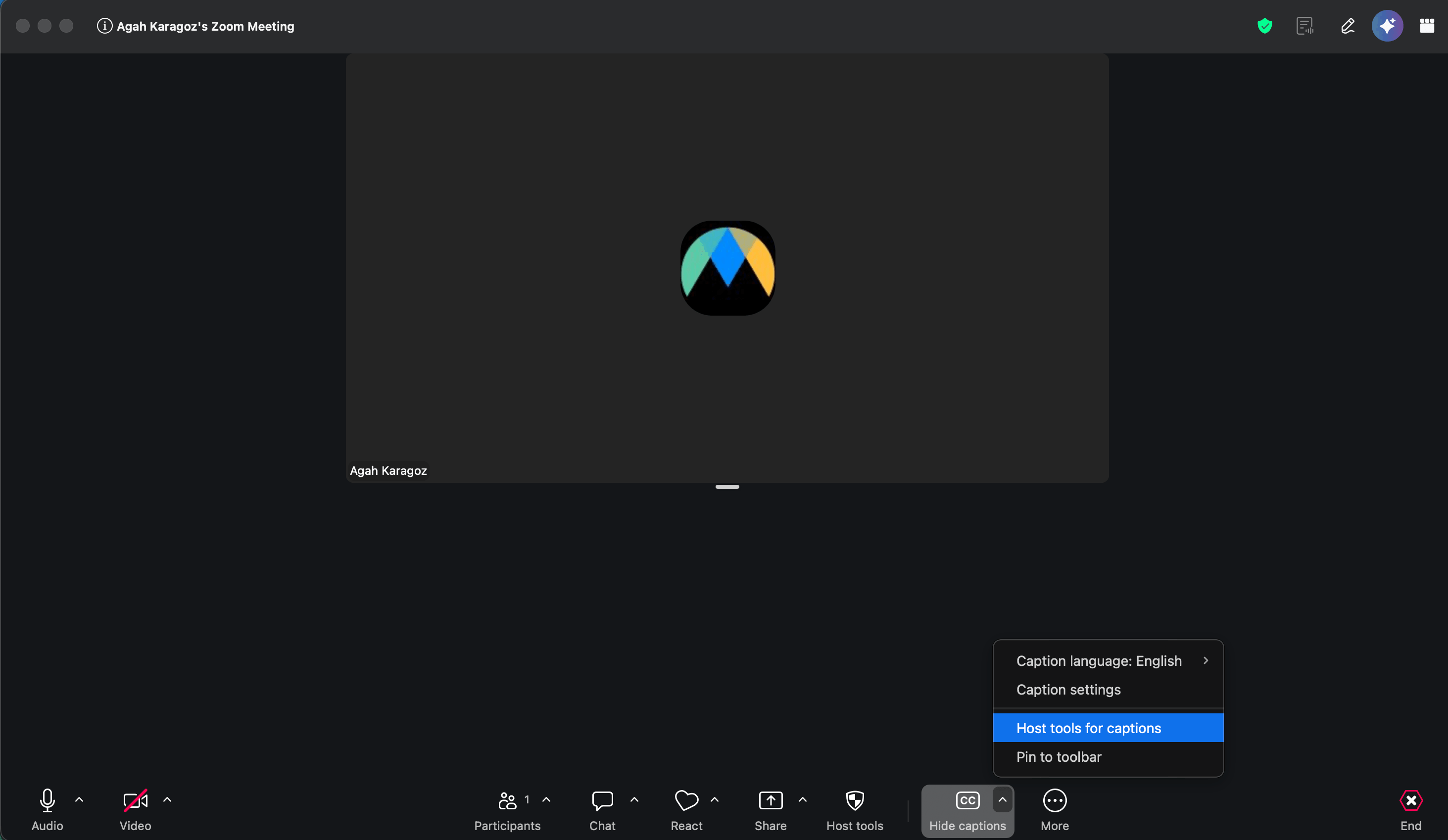
Open "Host tools for captions"
Once captions are on, click the little arrow next to the Captions button and pick Host tools for captions.
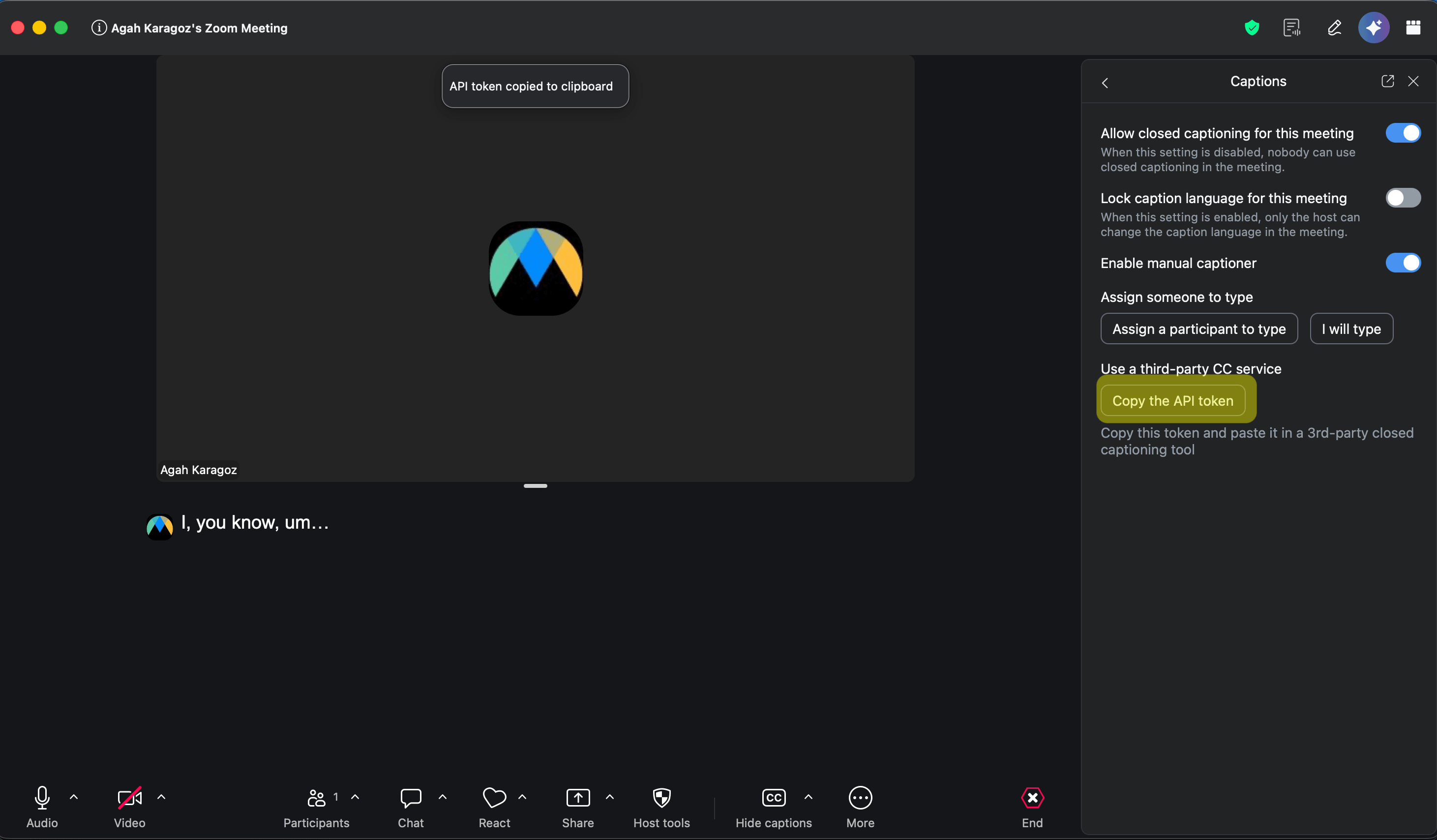
Turn on the manual captioner
In the Captions panel, turn on Enable manual captioner.
Copy the API token
Under Use a third-party CC service, click Copy the API token. You will see an "API token copied to clipboard" message.
3. Connect Zoom in Maestra and start
Open the Zoom integration
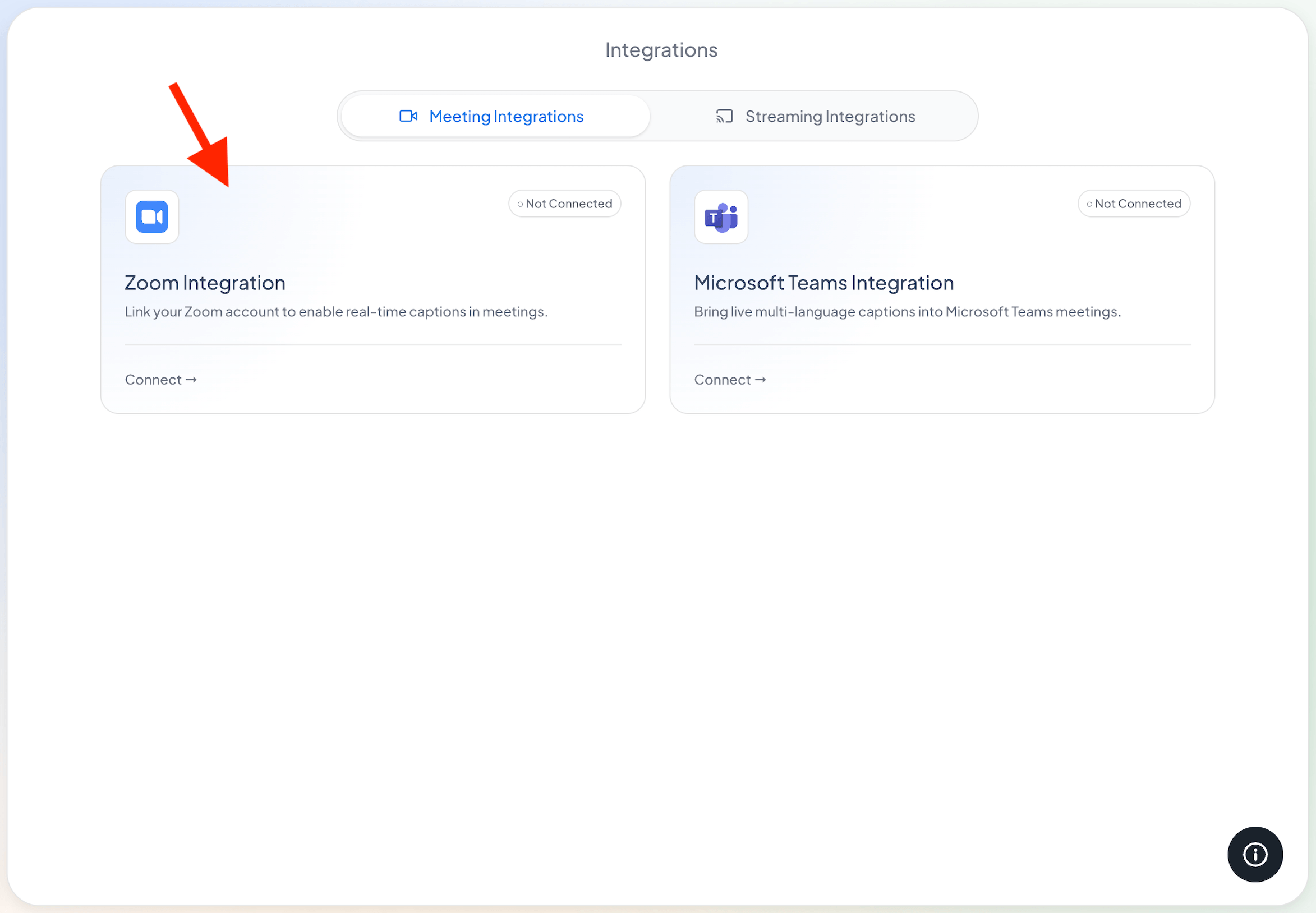
In Maestra, open Integrations from the left sidebar. On the Meeting Integrations tab, click Connect on the Zoom Integration card.
Paste your token
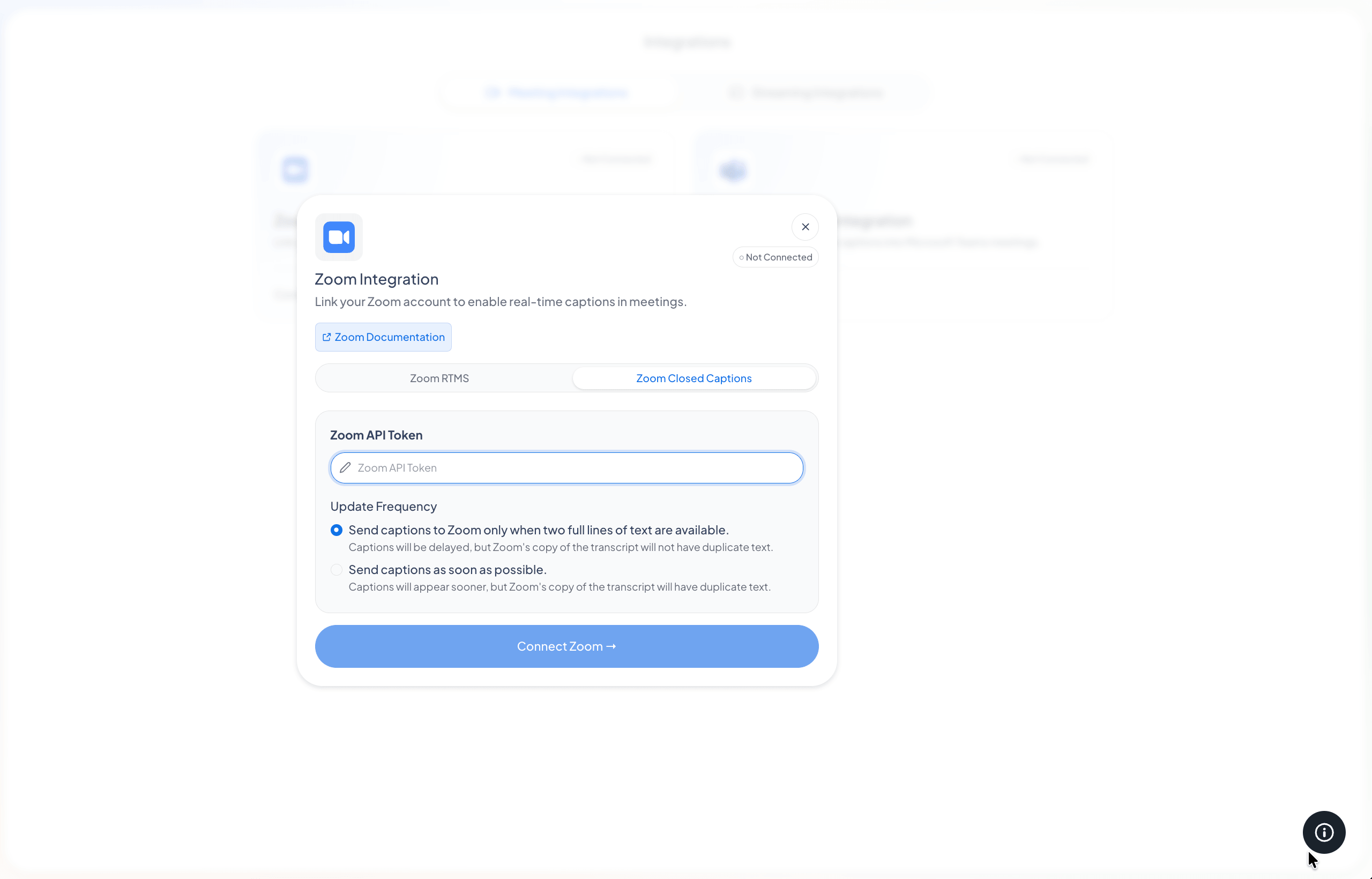
In the dialog, pick the Zoom Closed Captions tab and paste your token into the Zoom API Token field. (The Zoom RTMS tab is coming soon.)
Choose how often to send captions, then connect
Pick how often Maestra sends captions to Zoom, then click Connect Zoom. The card will now show Connected.
- Only when two full lines are ready. Captions show up a little later, but Zoom's saved transcript stays clean, with no repeated text. We recommend this one.
- As soon as possible. Captions show up faster, but Zoom's saved transcript can end up with some repeated text.
Start a session
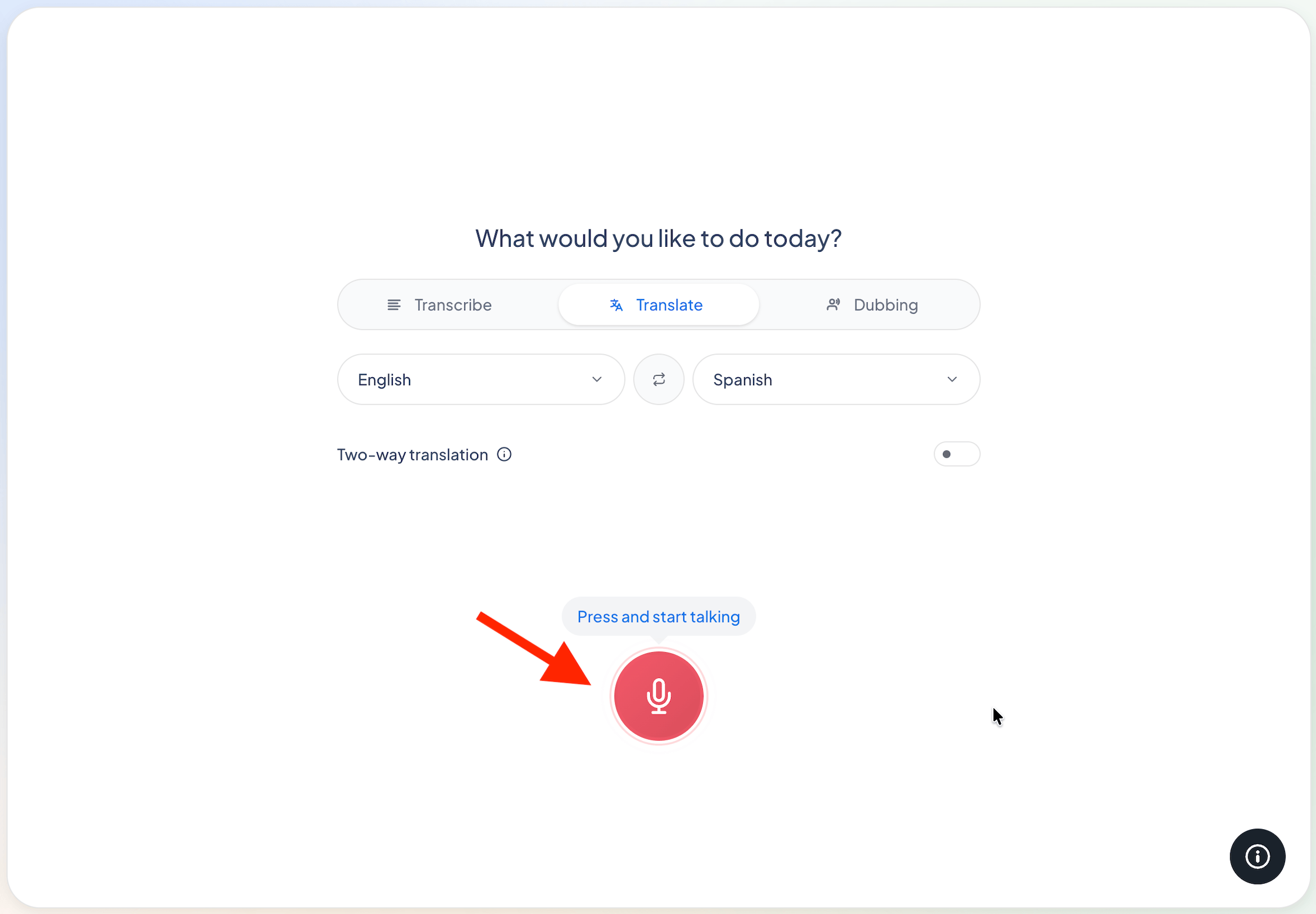
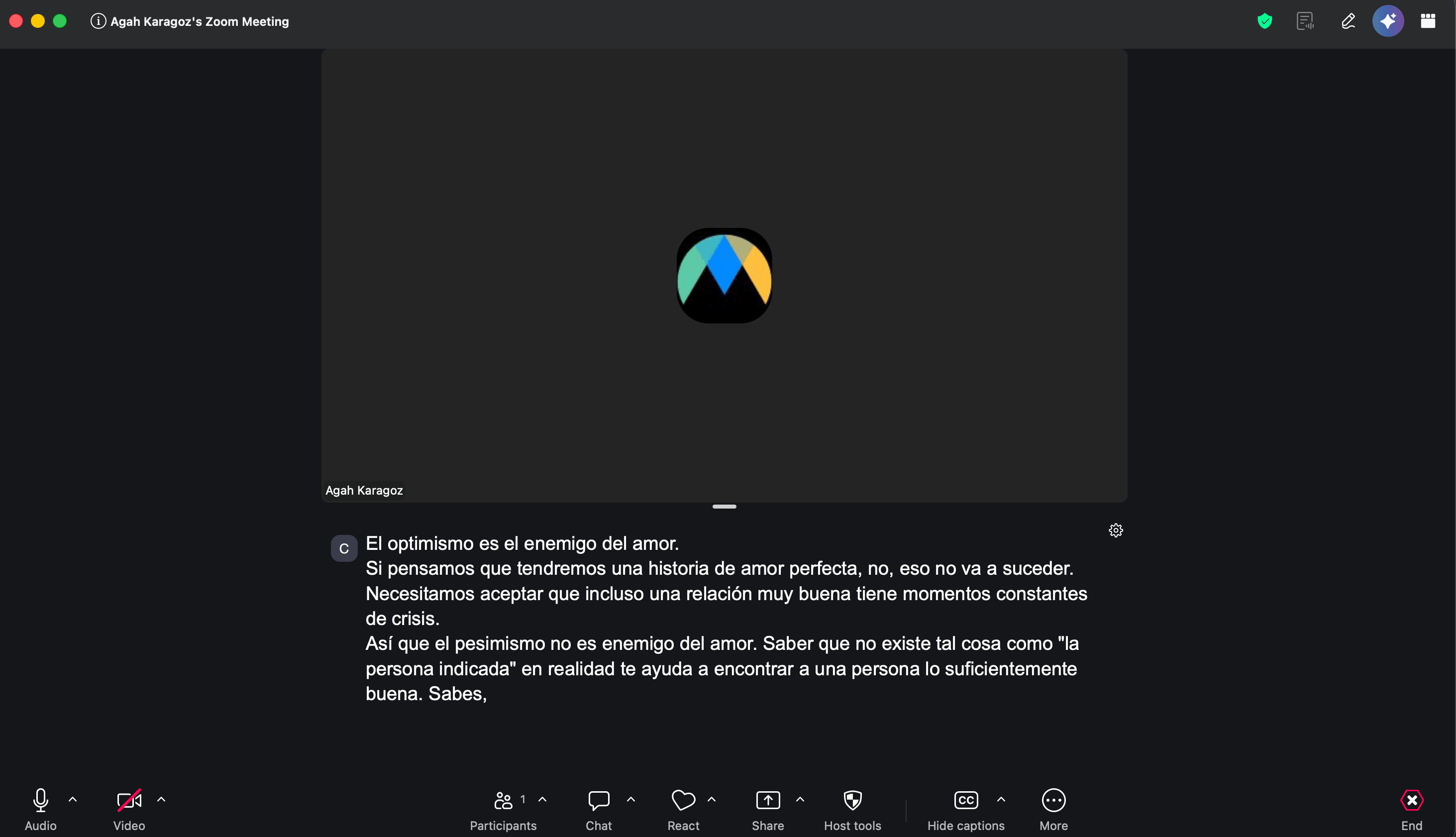
Go to Home and press Press and start talking. Maestra sends the captions to your connected Zoom meeting. In Transcribe mode it sends the spoken text, and in Translate mode it sends the translation.
Troubleshooting
I don't see "Host tools for captions" or "Copy the API token"
Check that you're the host. Also make sure Manual captions and the caption token option are turned on in your Zoom settings (Step 1).
Captions aren't showing up in Zoom
A few things to check: Zoom shows as connected in Maestra, the token came from this meeting (each meeting has its own), a session is running in Maestra, and manual captions are on in the meeting.
Captions stopped working in a new meeting
Every meeting gets its own token. Copy a new one from the new meeting and connect again under Integrations → Zoom.
Which language shows up in Zoom?
In Transcribe mode you'll see the spoken language. In Translate mode you'll see the language you chose to translate into.
Is there a Zoom App Marketplace app?
Not yet. A Zoom RTMS option is coming soon. For now, the caption token steps on this page are the way to add Maestra captions to Zoom.