OBS Studio Integration
Send live captions from Maestra to OBS Studio.
Overview
Follow these steps to connect OBS Studio to your Maestra real-time captioner, so your live captions appear on your OBS output and on any platform you stream to, such as Twitch or YouTube. The same steps also resolve the most common issue, where OBS and Maestra are open but Maestra cannot connect to OBS. Work through the steps in order.
Maestra sends your captions into a text box that you add in OBS. You can also display a shareable session in a browser source instead.
Before you start
- Use Google Chrome and keep it updated to the latest version.
- Install OBS Studio version 26.1 or later.
- Make sure the obs-websocket plugin is available (version 4.9.0 or later). OBS 28 and newer include it, exposed through the WebSockets Server Settings (4.x Compat) option.
- Confirm your microphone already works in Maestra (see the Microphone Set-Up guide).
Getting started
Add a text box in OBS
- In OBS, make a text box where your captions will appear.
- Make sure the text box is visible and configure its font options in a sensible way.
- Remember the exact name of the text box. You will enter it in Maestra in step 4.
Enable the WebSockets server in OBS
- Open OBS Studio.
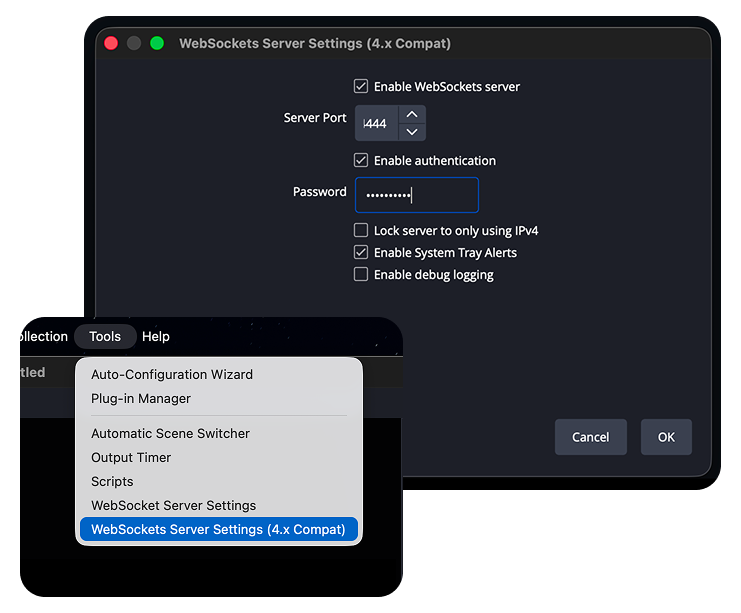
- In the top menu, go to Tools > WebSockets Server Settings. On OBS 28 and newer, choose the (4.x Compat) entry.
- Tick Enable WebSockets server.
- Note the Server Port. This guide uses
4444. If you are unsure which port to use,8080also works. You will enter this same port in Maestra. - Tick Enable authentication and set a Password. A password is optional but recommended.
- Click OK and leave OBS open.
- If OBS was already open when you changed these settings, restart OBS.
Open the Channels settings in Maestra
- Open your Maestra real-time captioner and log in with your account credentials.
- Open Settings, then select Channels.
- Under Add a Channel, click OBS Studio.
Configure the OBS Studio channel
- In the OBS Studio setup panel, review the listed requirements and the linked obs-websocket plugin (OBS Studio 26.1 or later and the plugin 4.9.0 or later).
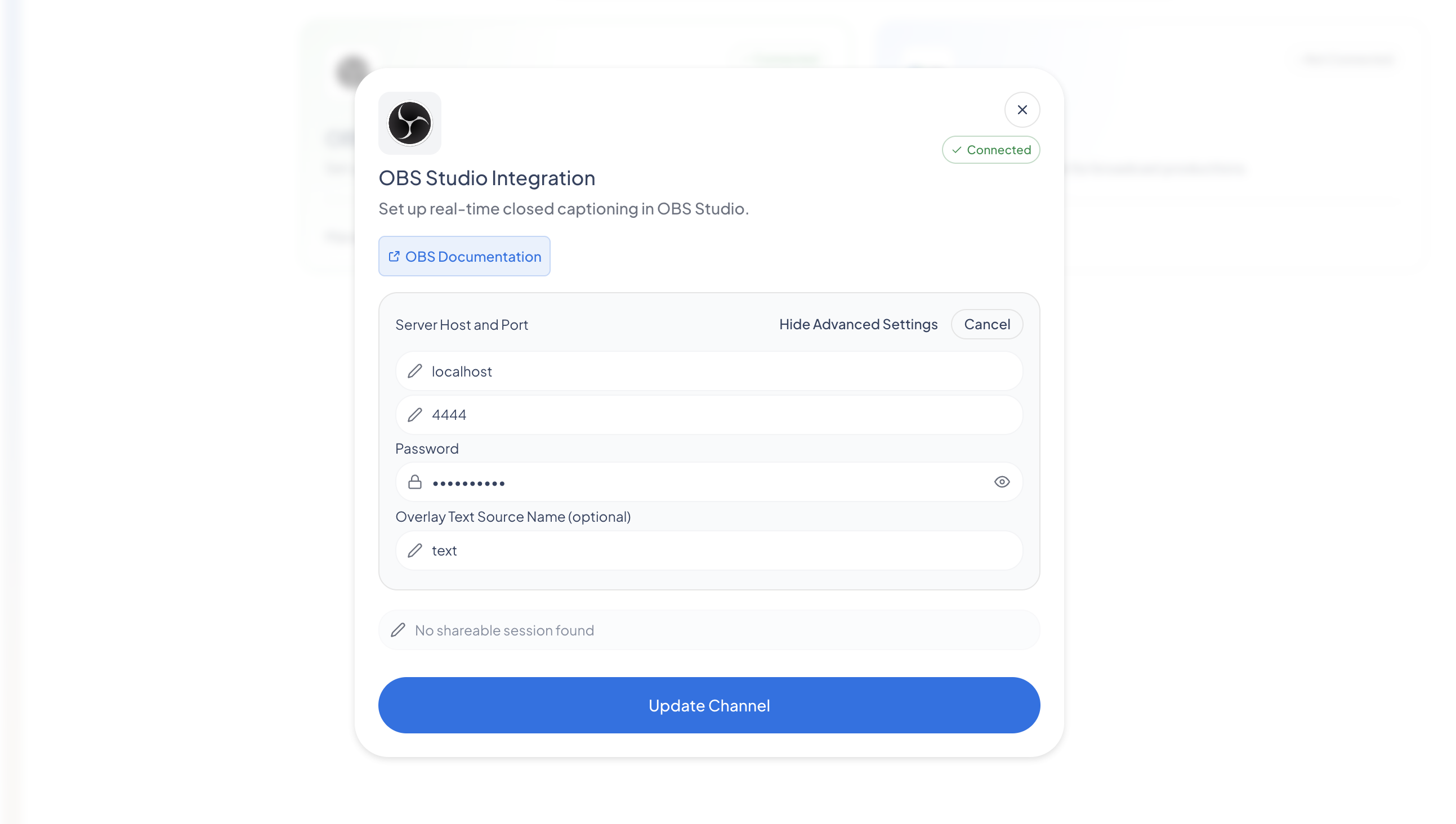
- In the Server Port field, enter the same port you set in OBS, for example
4444. - In the Password field, enter the same password you set in OBS, if you set one.
- In the Overlay Text Source Name field, enter the exact name of the text box you created in OBS.
- Click Update Channel, then refresh the page.
- Confirm the OBS Studio channel toggle is switched on. It turns teal when the channel is active.
Start captioning
- Return to the captioner main screen.
- Confirm your microphone and caption language, for example EN.
- Click Start Captioning.
- Begin speaking. Maestra transcribes your speech and sends captions to OBS in real time.
Verify captions on your output
- Open your OBS output or stream, for example your Twitch or YouTube channel page.
- As you speak, finalized captions appear on the stream. Refresh the stream page if needed.
- Expect a short delay. Captions are sent once each phrase is finalized, so they appear a moment after you speak.
Stop captioning
- Click Stop Captioning when you are finished.
- The OBS connection stays configured for next time. You can leave the channel on, or toggle it off under Settings, then Channels.
Best practices
- Match the port and password exactly on both sides. They must be identical in OBS and Maestra.
- Connect your microphone directly and use Chrome for the most accurate captions.
- Speak clearly and at a steady pace. Captions are sent as each phrase is finalized.
- Allow for a short latency. Pausing briefly between thoughts keeps captions readable on screen.
Troubleshooting
Maestra cannot connect to OBS.
Confirm OBS is open and the WebSockets server is enabled (Tools > WebSockets Server Settings). Verify the Server Port matches in OBS and Maestra. If you set a password in OBS, confirm the same password is entered in Maestra.
The channel will not turn on.
Click Update Channel after entering the port and password, then toggle the OBS Studio channel on. Restart OBS if it was open before you changed the WebSocket settings.
No captions appear on the stream.
Confirm captioning is running in Maestra and your microphone is active. Refresh the stream page. Captions appear after each phrase is finalized, so expect a short delay.
Wrong or low-quality captions.
Confirm the correct caption language is selected. Improve audio clarity and reduce background noise.
Still stuck?
If captions still do not appear after these steps, contact support through your Maestra dashboard or help center and include your operating system, browser version, and OBS version.
Add a browser source
As an alternative to the text overlay, you can display a shareable session in an OBS browser source. This requires PRO.
- Open OBS, go to the 'Add Source' menu, and select 'Browser'.
- Choose to create a new browser source and make sure to mark it as visible.
- Once the browser source configuration opens, come back to the Captioner and start a new shareable session (you'll need PRO for this).
- Once the session has started, copy the share link from Maestra and paste it in the URL field in OBS browser source setup, and save the settings.