AI Summary
Turn a saved session into an automatic AI summary, generated from the Recordings tab, shaped by your summary preferences.
Generate a summary
Summaries are created from a saved session, so you need Save transcript turned on during the session and a signed-in account, and the session then appears in your Recordings.
Open the Recordings tab
Go to the Recordings tab and open the saved session you want to summarize.
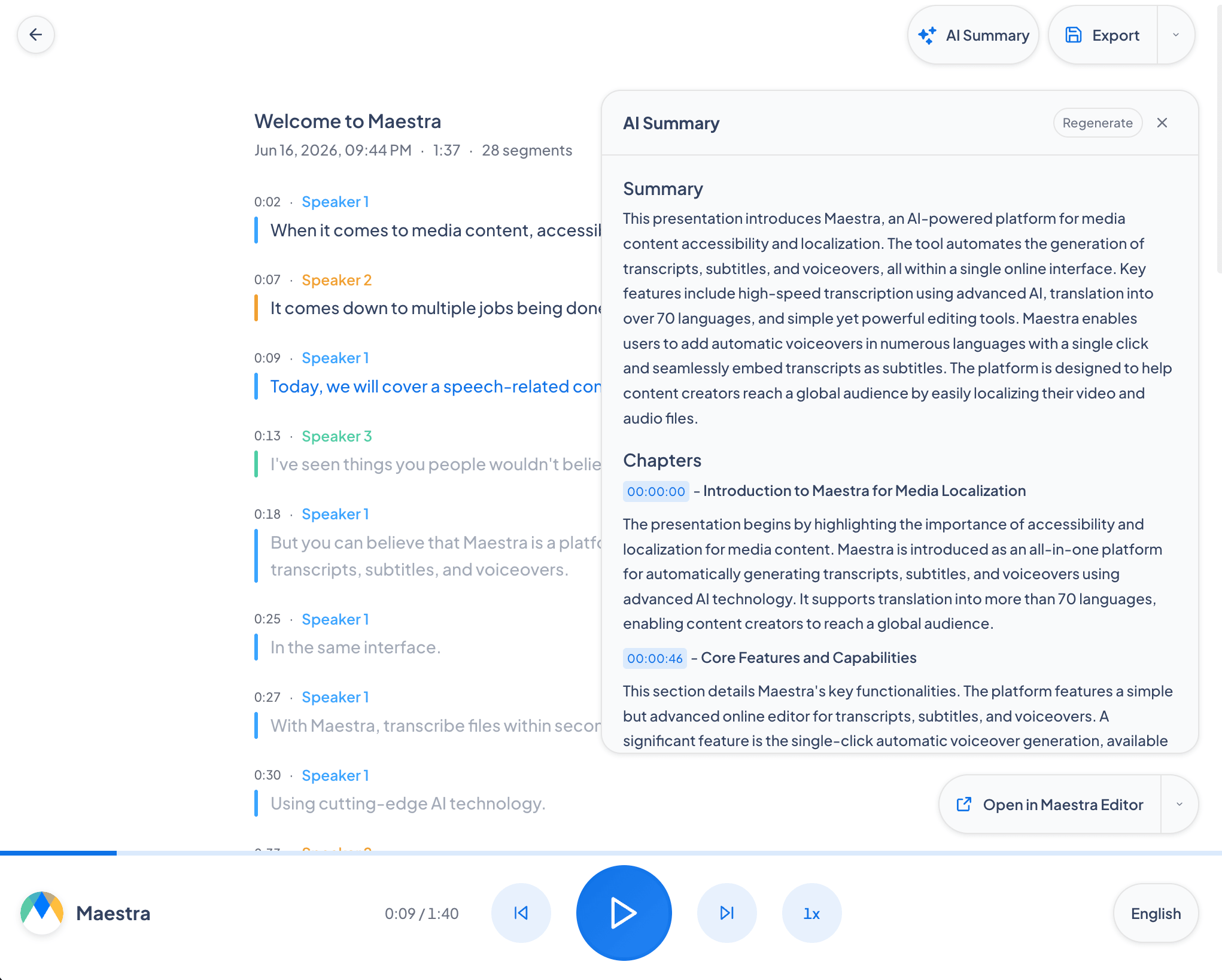
Click AI Summary
Click the AI Summary button. Maestra reads the transcript and writes the summary using your saved preferences.
Review, edit, or regenerate
Read the summary in the panel and edit the text if you like. You can Regenerate to produce a fresh version, up to 5 summaries per recording.
Summary options
These preferences are set in Settings → General → AI Summary and apply to every summary you generate.
Frequently asked questions
Where do I generate an AI summary?
From the Recordings tab. Open a saved session and click the AI Summary button. Summaries aren’t generated from the Settings page.
Why is the AI Summary button unavailable?
The transcript must be at least 200 characters long. Sessions with too little content can’t be summarized.
Can I generate a fresh summary?
Yes. Use Regenerate in the summary panel to create a new version. You can create up to 5 summaries per recording.
Where do I change the length, language, and other options?
Settings → General → AI Summary. Length, language, and the other toggles all live there. They also show up when you hit Regenerate on a recording, so you can tweak them per summary.