Google Meet Integration: Live Captions for Google Meet Calls
Overview
This integration brings Maestra live captions to Google Meet. Maestra sends a captioning bot into your meeting. The bot listens to the call and turns everything said into real-time transcription or translation.
You follow the captions in Maestra, and everyone else gets a link, posted right into the Meet chat, where they can read along in their own language, on any device. They don't need a Maestra account.
How it works
There are three steps:
- Step 1: Enable the Google Meet integration. You only do this once.
- Step 2: Pick your languages, paste your Meet link, and start the session.
- Step 3: Admit Maestra Bot into the meeting when it asks to join.
1. Enable the Google Meet integration
You only need to do this once.
Open the Integrations page
In Maestra, open Integrations from the left sidebar and go to the Meeting Integrations tab.
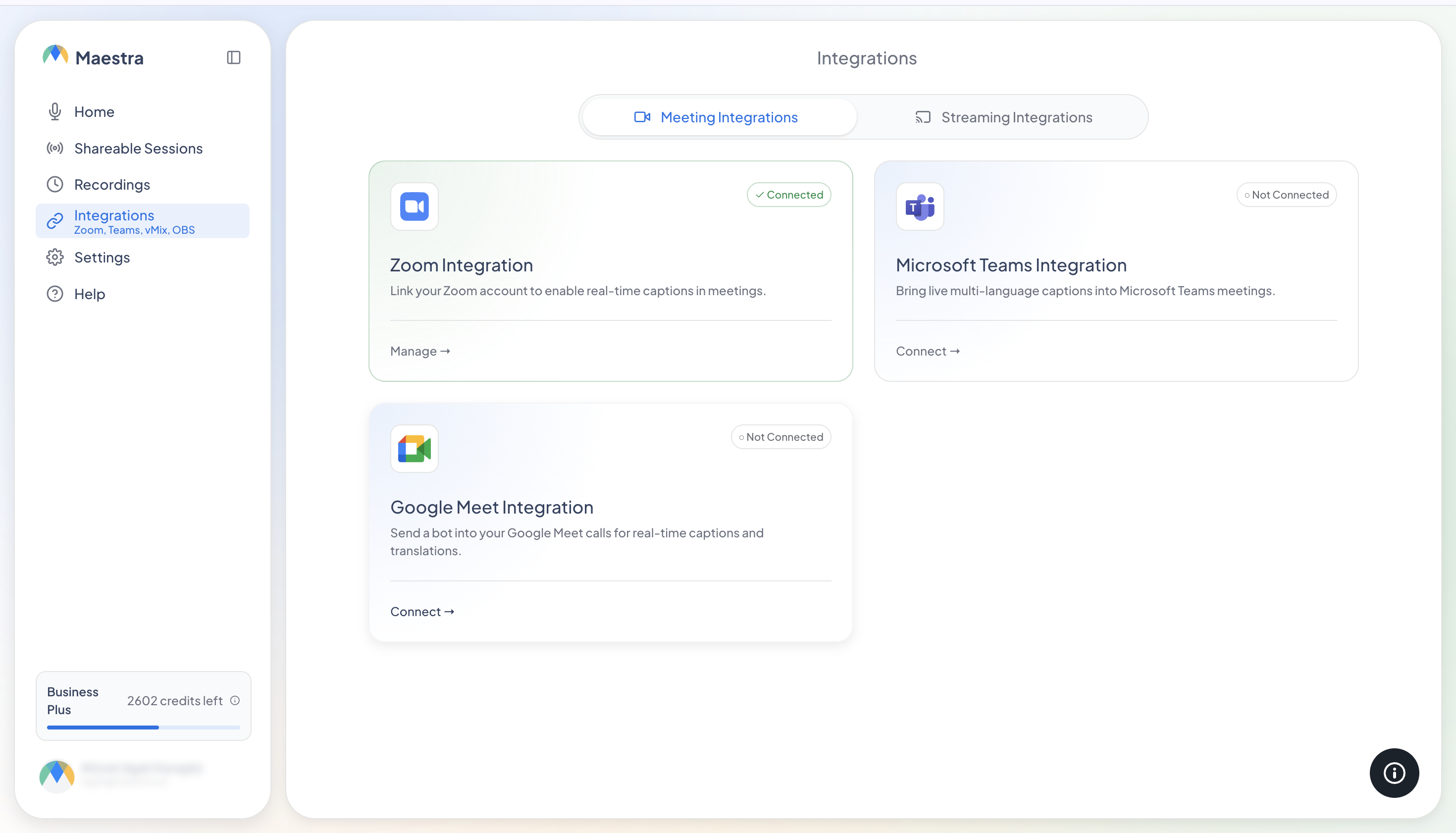
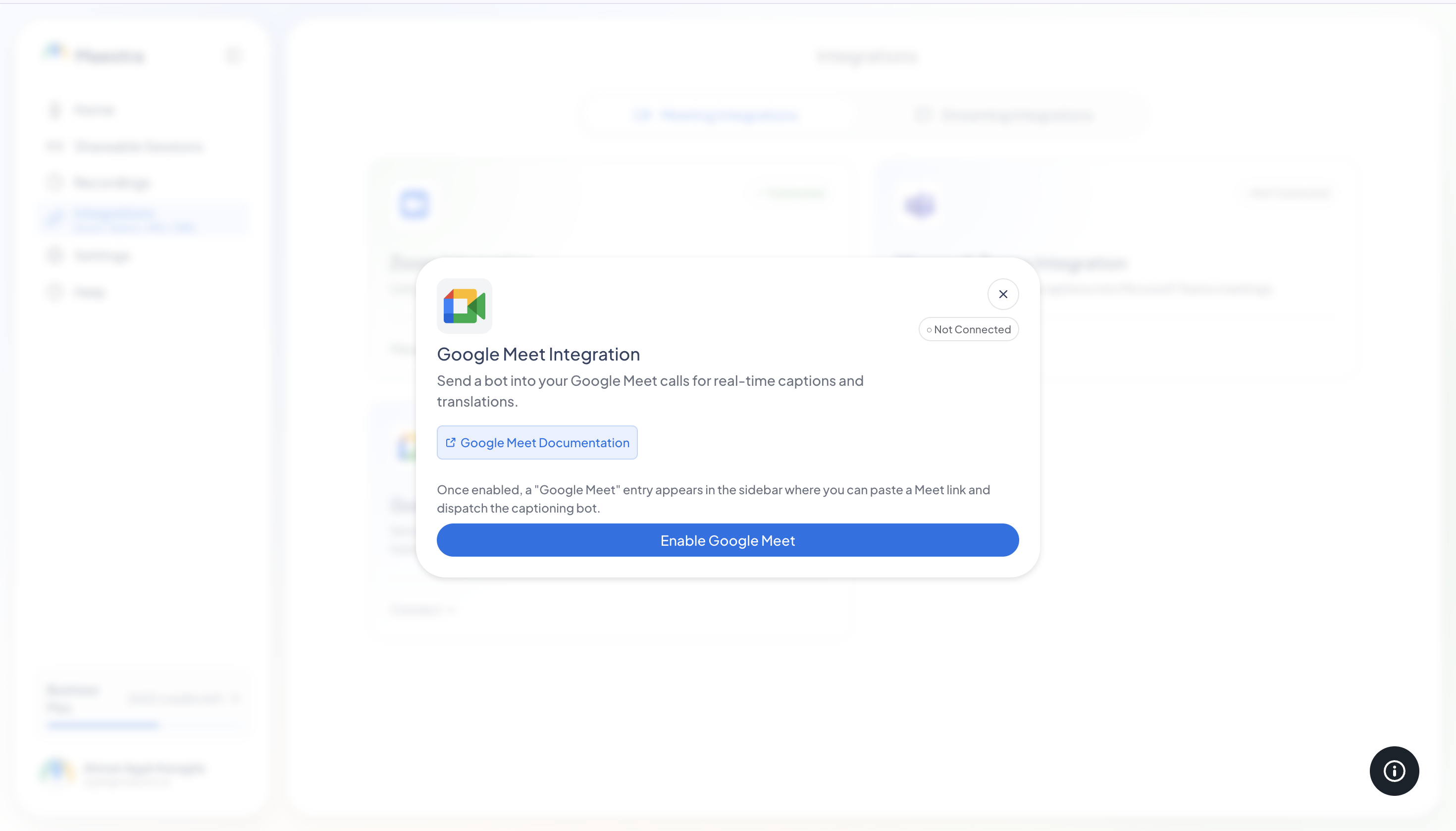
Enable Google Meet
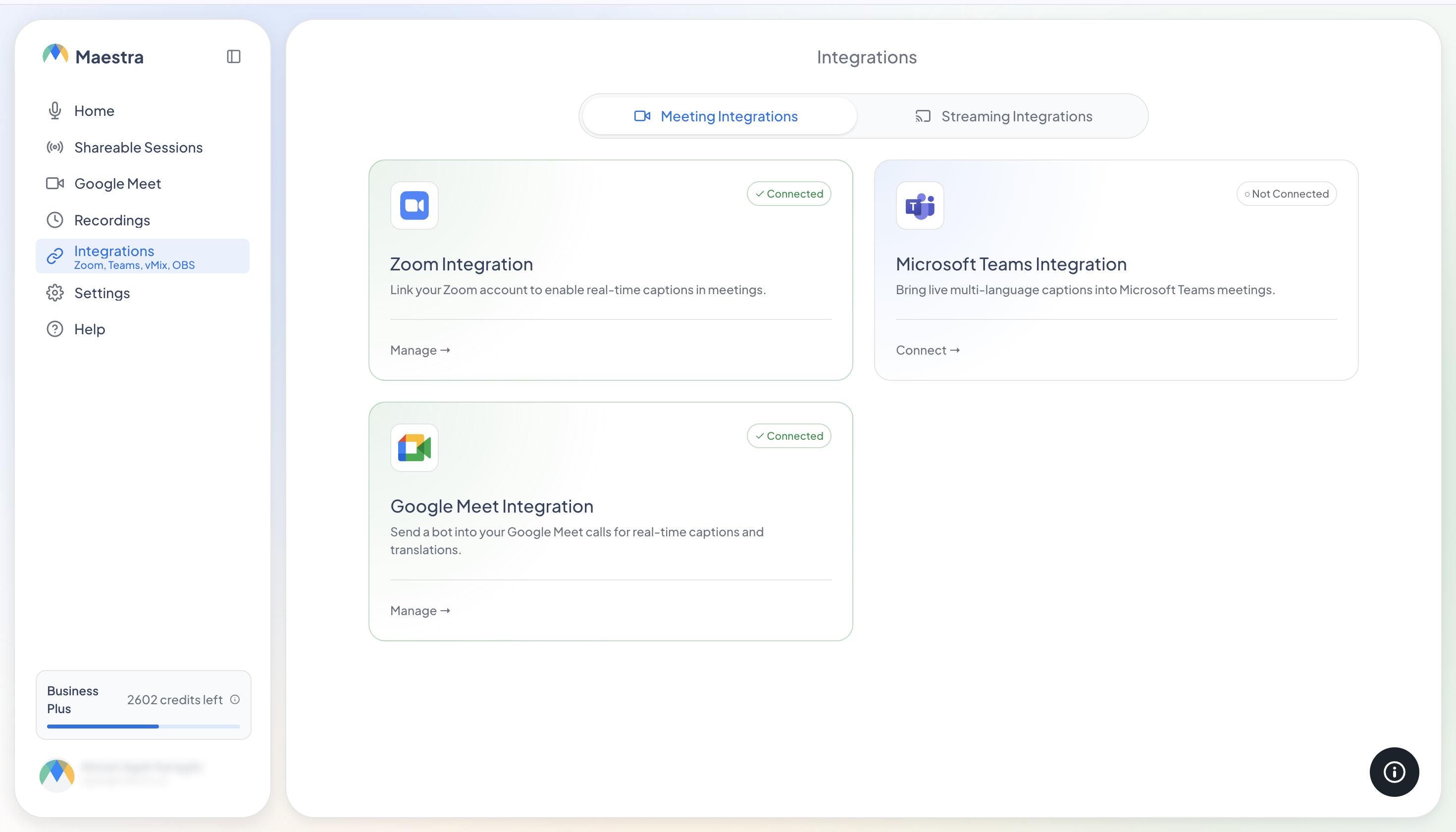
On the Google Meet card, click Connect, then Enable Google Meet in the dialog. A Google Meet entry appears in the left sidebar. That's where you'll start your sessions.
2. Set up and start your session
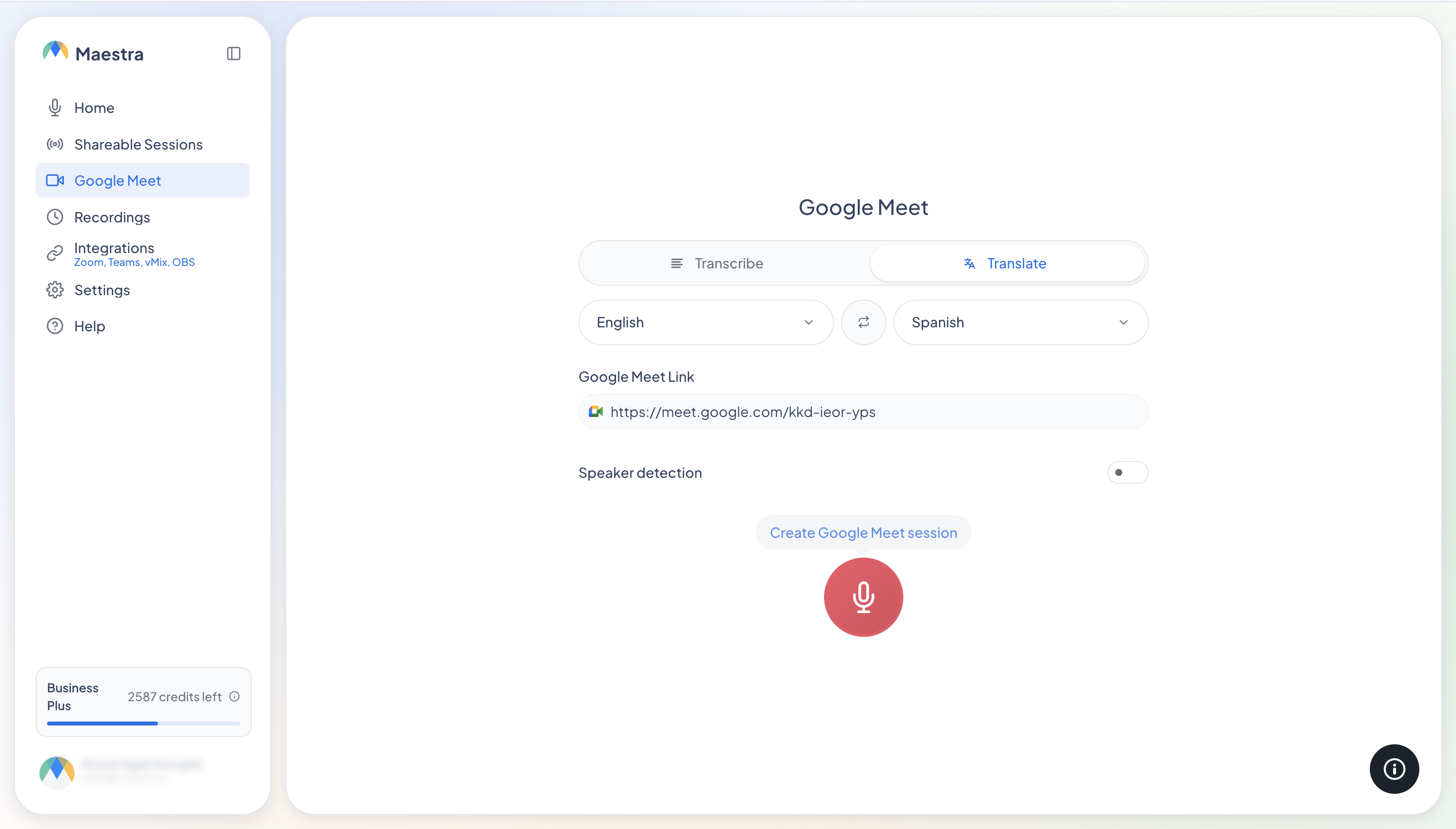
Open Google Meet from the left sidebar in Maestra.
Choose what you need
Pick Transcribe for captions in the spoken language, or Translate for translated captions. Then choose the source language and, if translating, your target language(s).
Optional: turn on Speaker Detection
With Speaker Detection on, captions are labeled by speaker. It can't be changed mid-session, so set it before you start.
Paste your Google Meet link
Copy the meeting link from Google Meet (it looks like https://meet.google.com/abc-defg-hij) and paste it into the Google Meet Link field.
Start
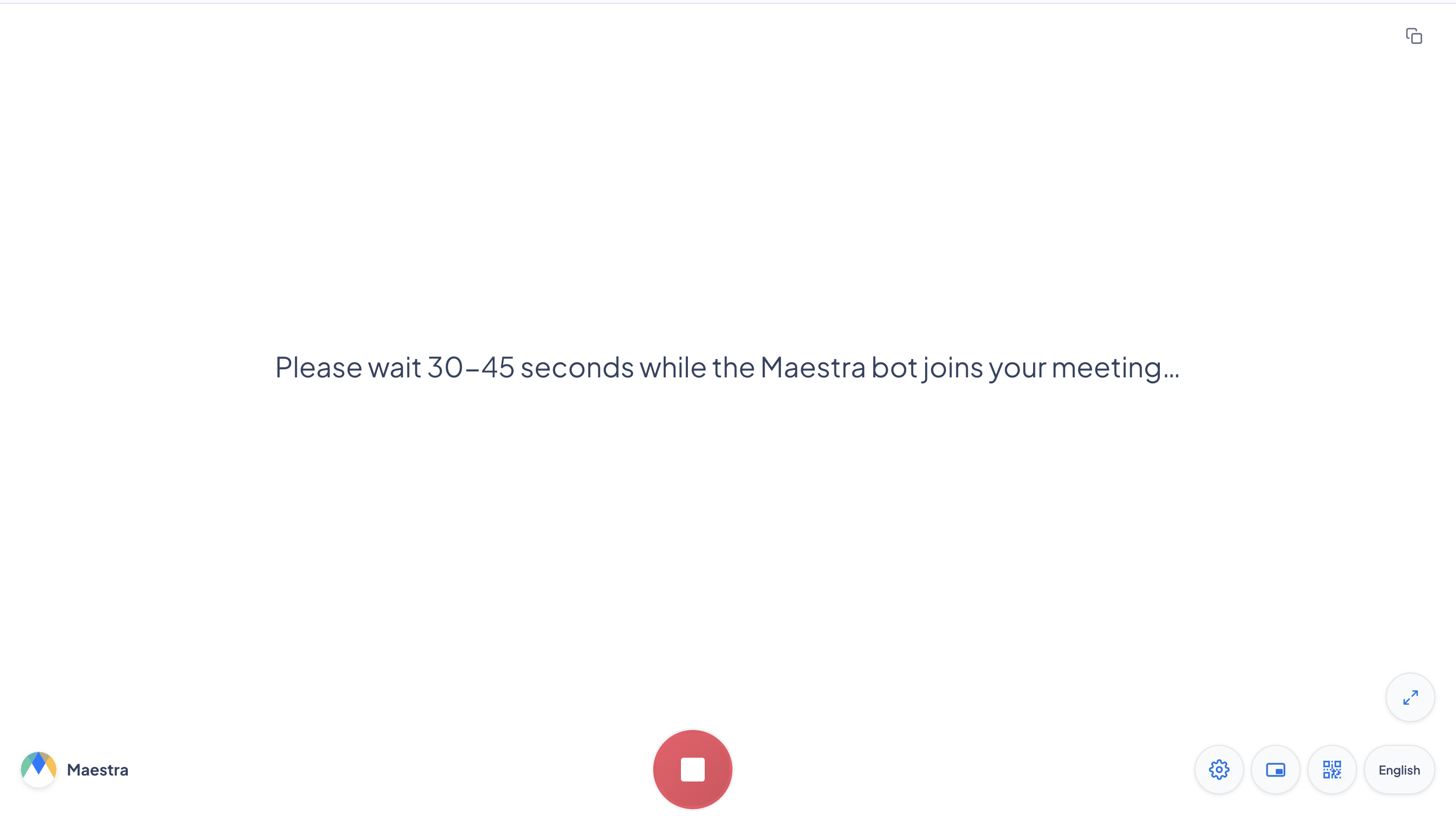
Press Create Google Meet session. Maestra switches to the live captions view and sends the bot to your meeting.
3. Admit the bot and share the captions
Let the bot in
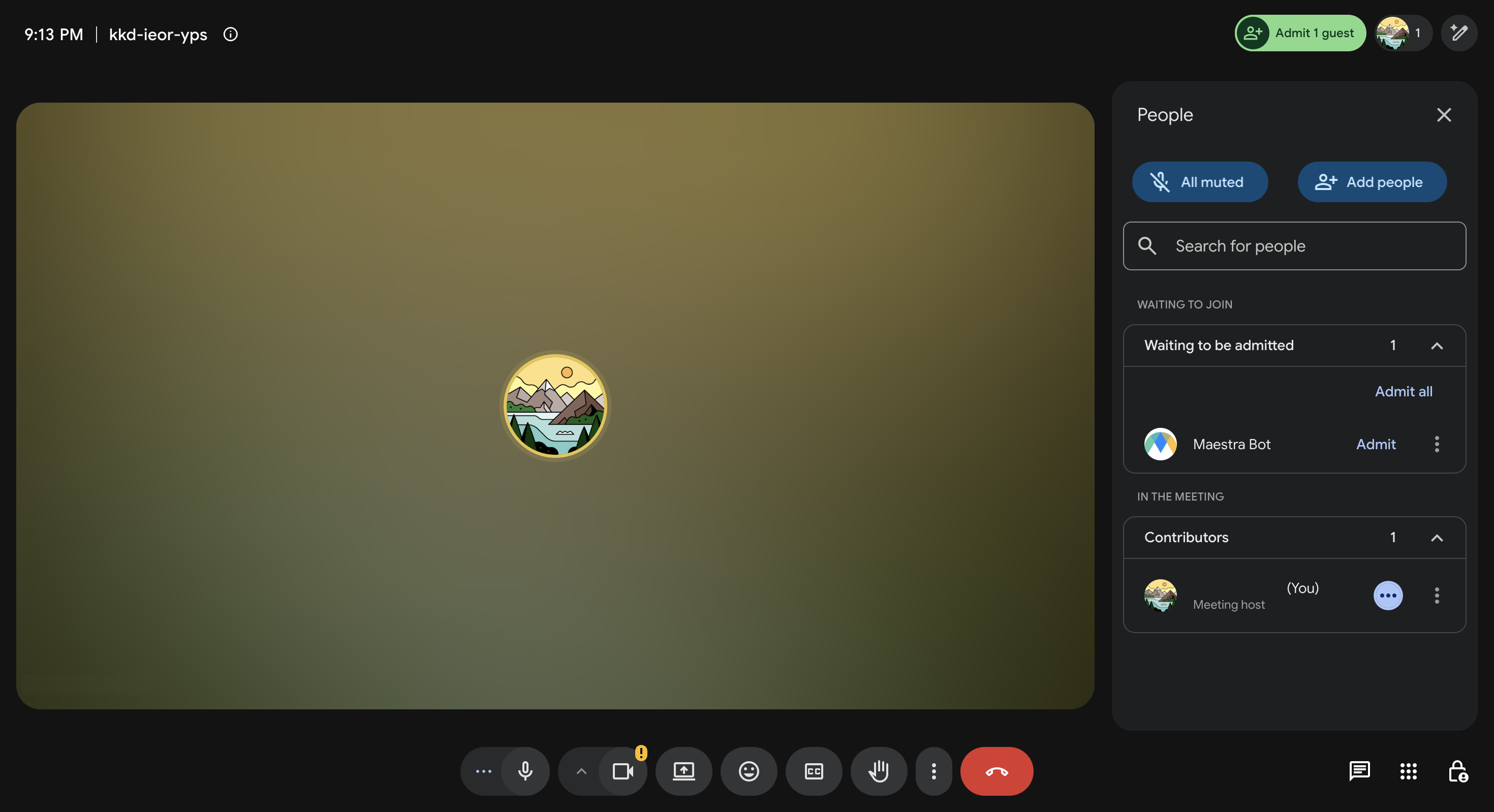
In your Google Meet call, a prompt appears saying "Maestra Bot wants to join". Click Admit. The bot waits for about 2 minutes. If the request expires, start the session again in Maestra.
Captions start automatically
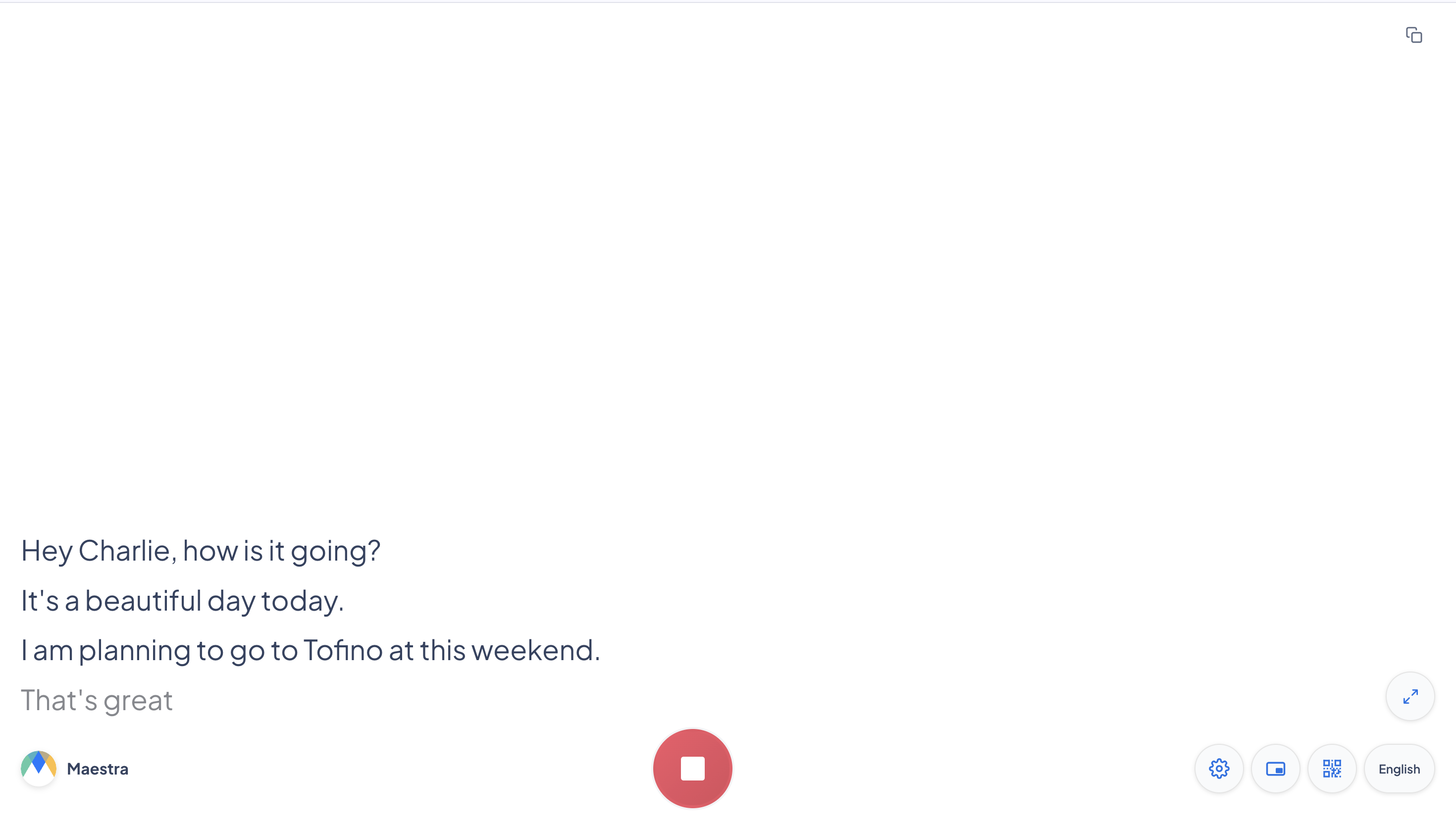
As soon as the bot is in the meeting, your live captions appear in Maestra.
Share with everyone
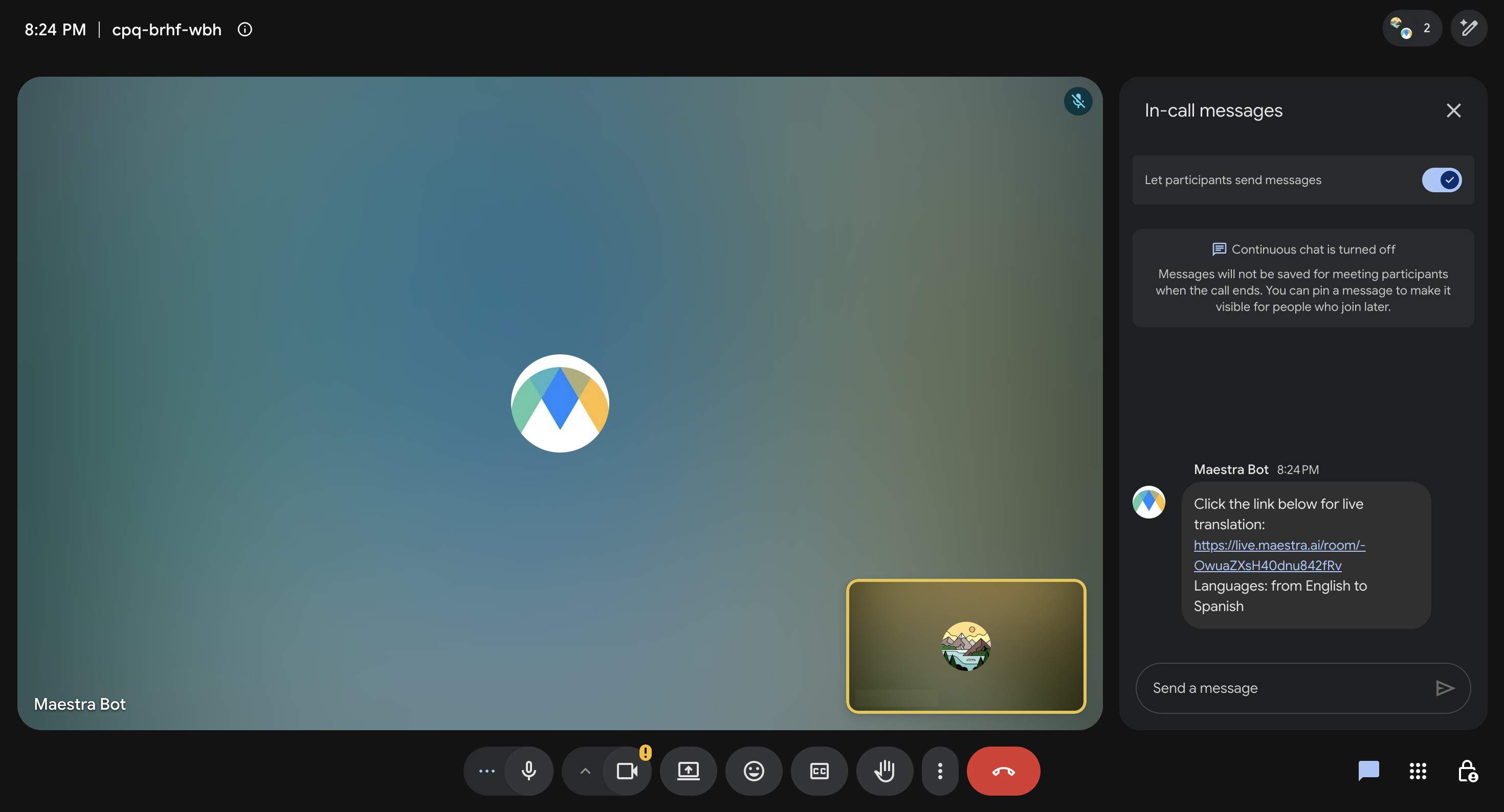
The bot posts the captions link into the Meet chat. Anyone in the meeting can open it on any device and pick their own caption language, no Maestra account needed.
Troubleshooting
The bot never joins, it's stuck on "Bot is joining the meeting…"
The bot is waiting to be admitted. Make sure the meeting is actually running, the link matches the meeting you're in, and someone clicks Admit on the "Maestra Bot wants to join" prompt within about 2 minutes. If the request expired, start the session again.
Someone denied the join request by accident
Start a new session from the Google Meet page. If the new join request never shows up, Google Meet may be blocking repeat requests for that meeting. Create a fresh Meet link and use that instead.
The bot is in the meeting but there are no captions
Check that at least one participant is unmuted and speaking, and that the source language matches what's being spoken. You can also open the shared captions link on another device. If captions show there, the issue is your browser or network.
Why don't captions show up in Meet's own caption bar (the CC button)?
That's a Google Meet limitation: Meet doesn't allow third-party captions in its built-in caption bar. Your Maestra captions live in the Maestra captions view and the shared link, where each viewer can pick their own language.
There's no link in the meeting chat
The meeting host may have restricted who can send chat messages (Host controls). Allow chat messages and start again, or copy the captions link from your Maestra captions view and share it yourself.
Which language do viewers see?
In Transcribe mode the captions are in the spoken language; in Translate mode they're in the language(s) you chose. On the shared link, every viewer can also switch to any supported language themselves.