Welcome to Maestra Live
Live Sessions
Open the live app on the Transcribe tab, choose the language of the audio, and start capturing to generate a live transcript. Captions appear on screen as the audio goes on.
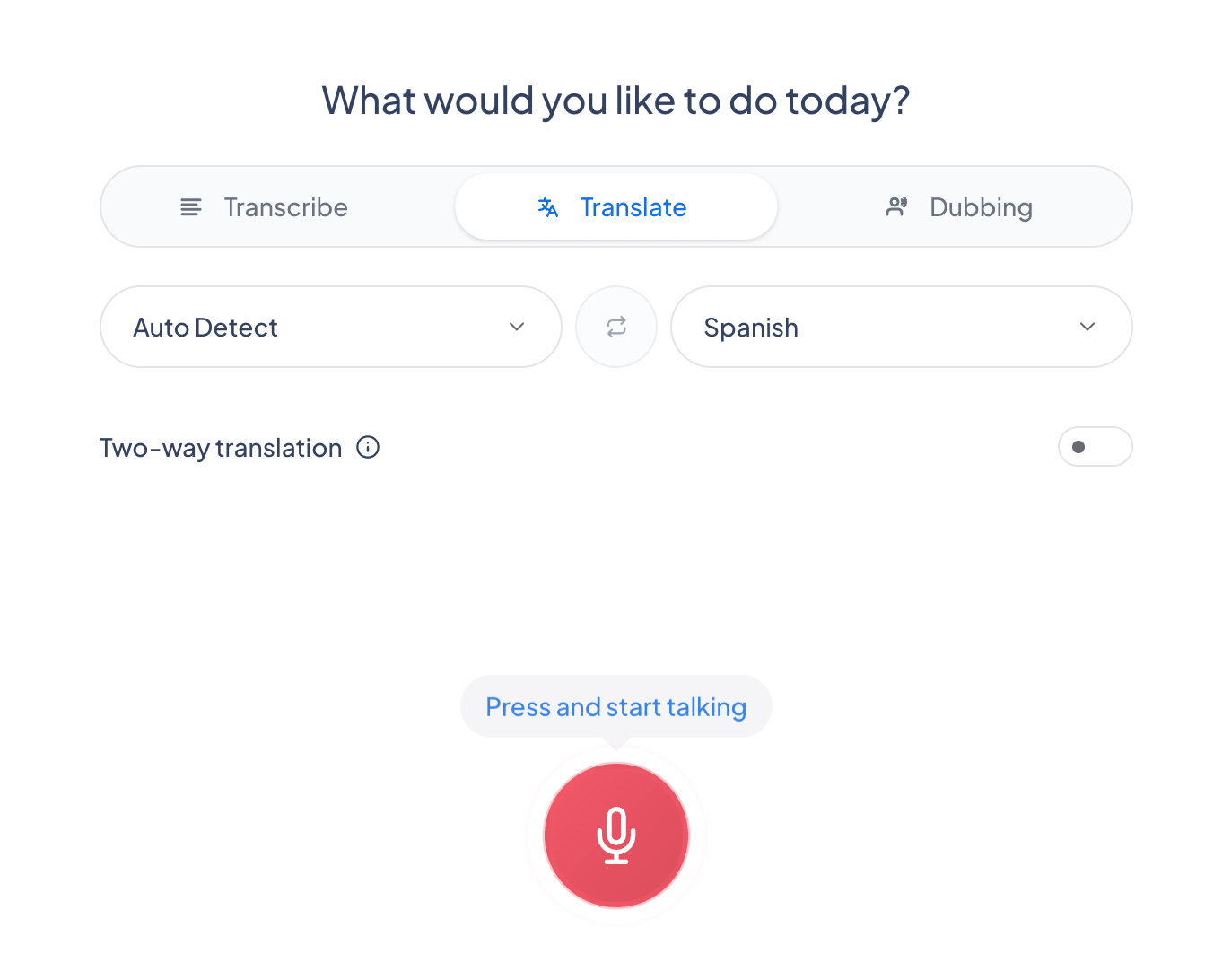
Open the Translate tab to add translated captions in real time, including a two-way mode where two people each speak their own language and Maestra translates in both directions. Translated and original captions appear side by side.
On the Dubbing tab, pick an AI voice to speak the translation aloud as you talk, or enable voice cloning to regenerate your own voice in the translated language. The voice plays alongside the speaker, with captions shown too.
Session Sharing
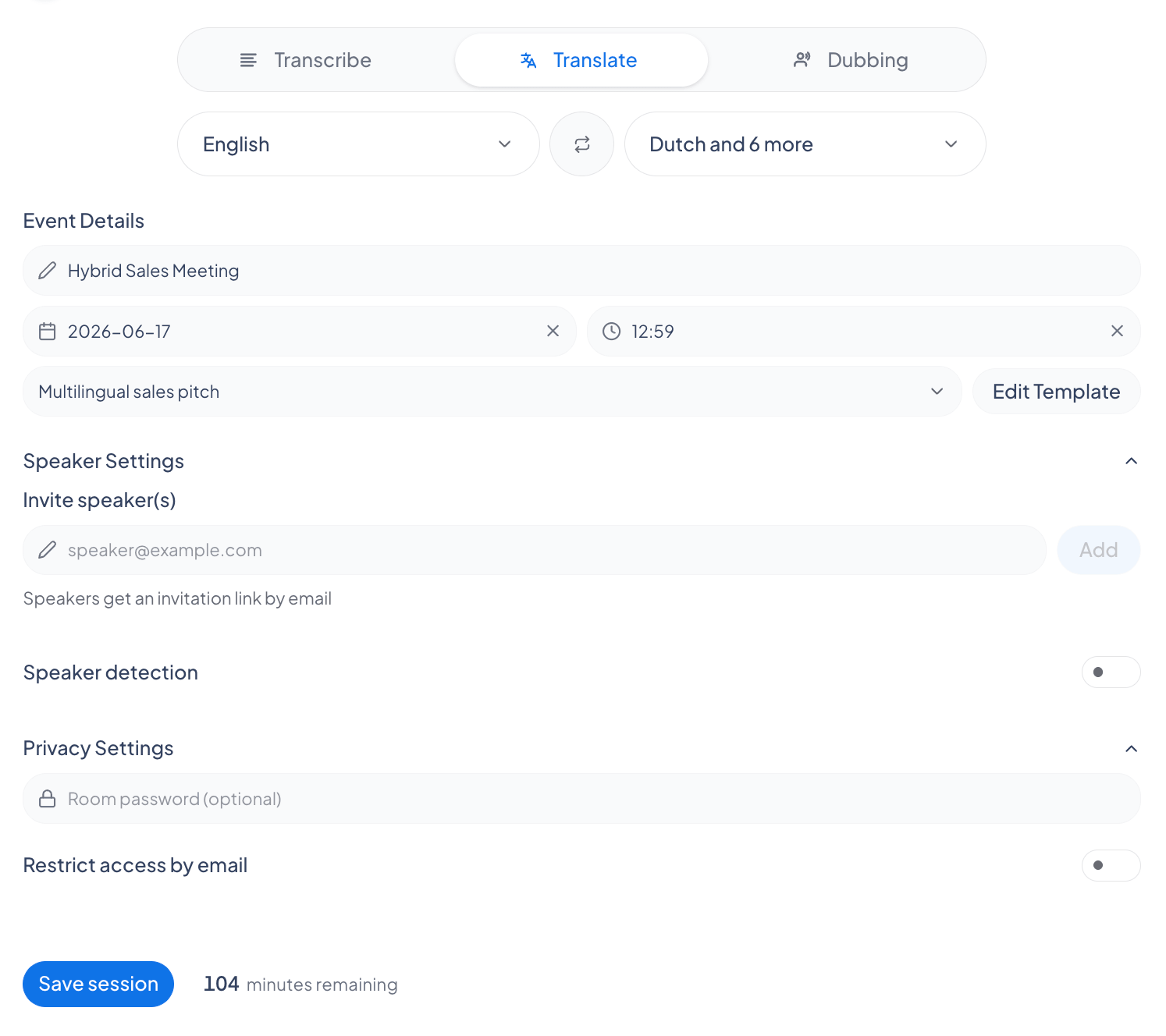
Create and share multilingual sessions that each participant follows in their preferred language. Share via QR code or email, viewable on mobile, desktop, and tablet.
General Settings
Saving a session
Toggle Save transcript and Save audio under General settings. Once saving is on, sessions are saved automatically to the Recordings tab. Keep them for archiving, or for further editing and translation with Maestra’s AI tools. Saving requires a signed-in account.
General settings also include profanity censoring, automatic speaker detection, audio processing, and AI summaries.
Audio Processing
Audio Processing lets you pick your microphone input and fine-tune capture with echo cancellation, noise suppression, and auto gain control for cleaner transcripts.
AI Summary
AI Summary generates an automatic session summary in your chosen length and language, with options like chapter detection, action-item extraction, per-speaker briefs, and key-topic tagging.
Customization
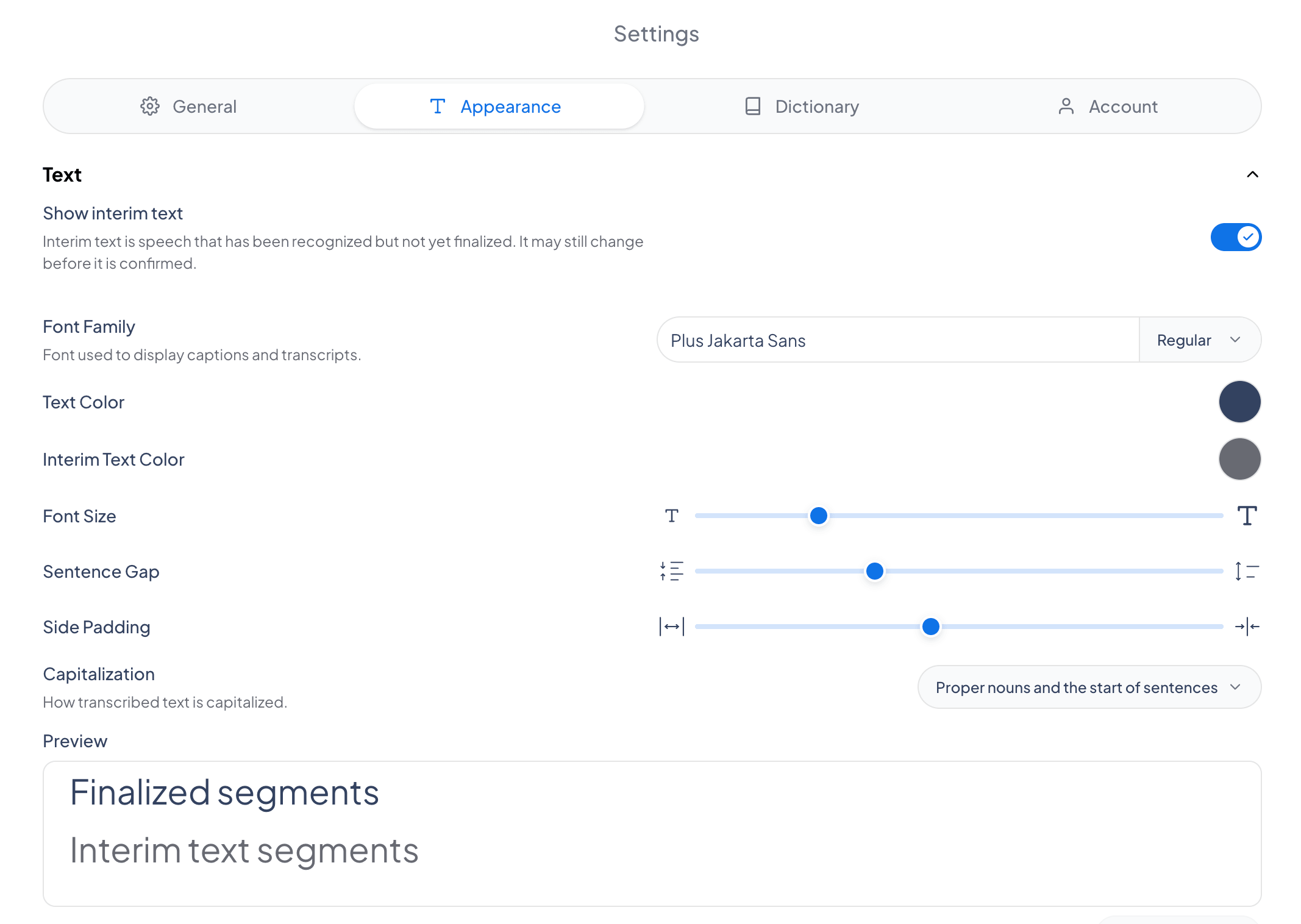
Change the caption font, text color, size, background, and alignment, and more. Tune captions to stay readable in any environment: in-person, virtual, or hybrid.
Integrations
In the Integrations tab, connect Maestra to services like OBS and vMix to add captions to your livestreams, or Zoom and Teams to caption and translate meetings in real time. Each integration has a short tutorial to get you started.
The settings menu also holds options such as word replacements, the language list, and profanity censoring.