Recordings
Save a session’s transcript and audio so you can revisit, play back, and export it later.
Turn on saving
Saving is controlled by two toggles in Settings. Open them before you start your session.
Enable Save transcript
Turn on Save transcript. Your transcript will be saved and made available in the Recordings tab when you stop captioning.
Enable Save audio
Turn on Save audio to also record the session’s audio. The audio is captured automatically and saved when you stop captioning. Save audio requires Save transcript to be on; turning Save transcript off turns Save audio off too.
Find your recordings
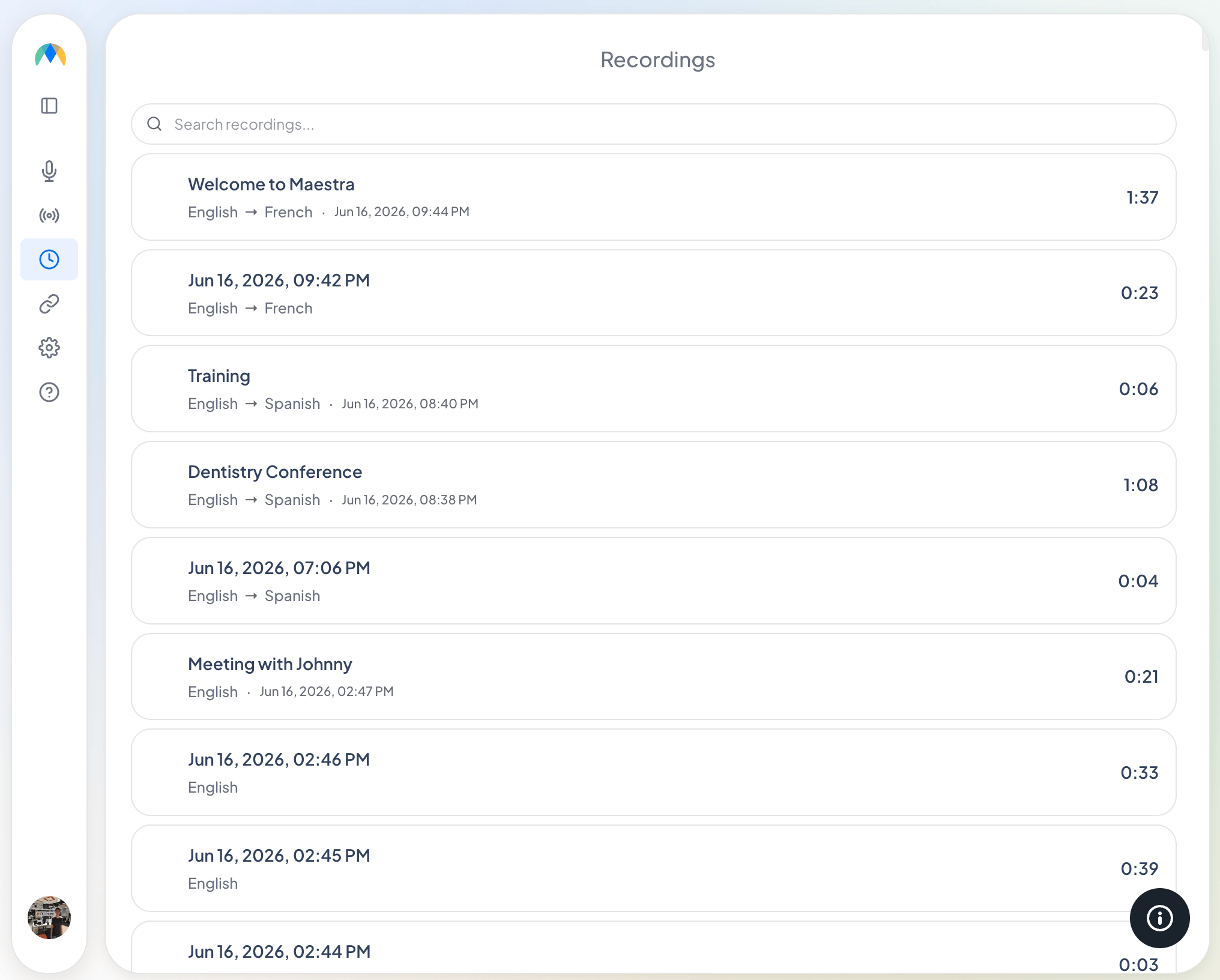
Saved sessions appear in the Recordings tab.
You can search your recordings, rename them, or delete them. Select a recording to open it, where you can play the audio and read the transcript.
Play and review a recording
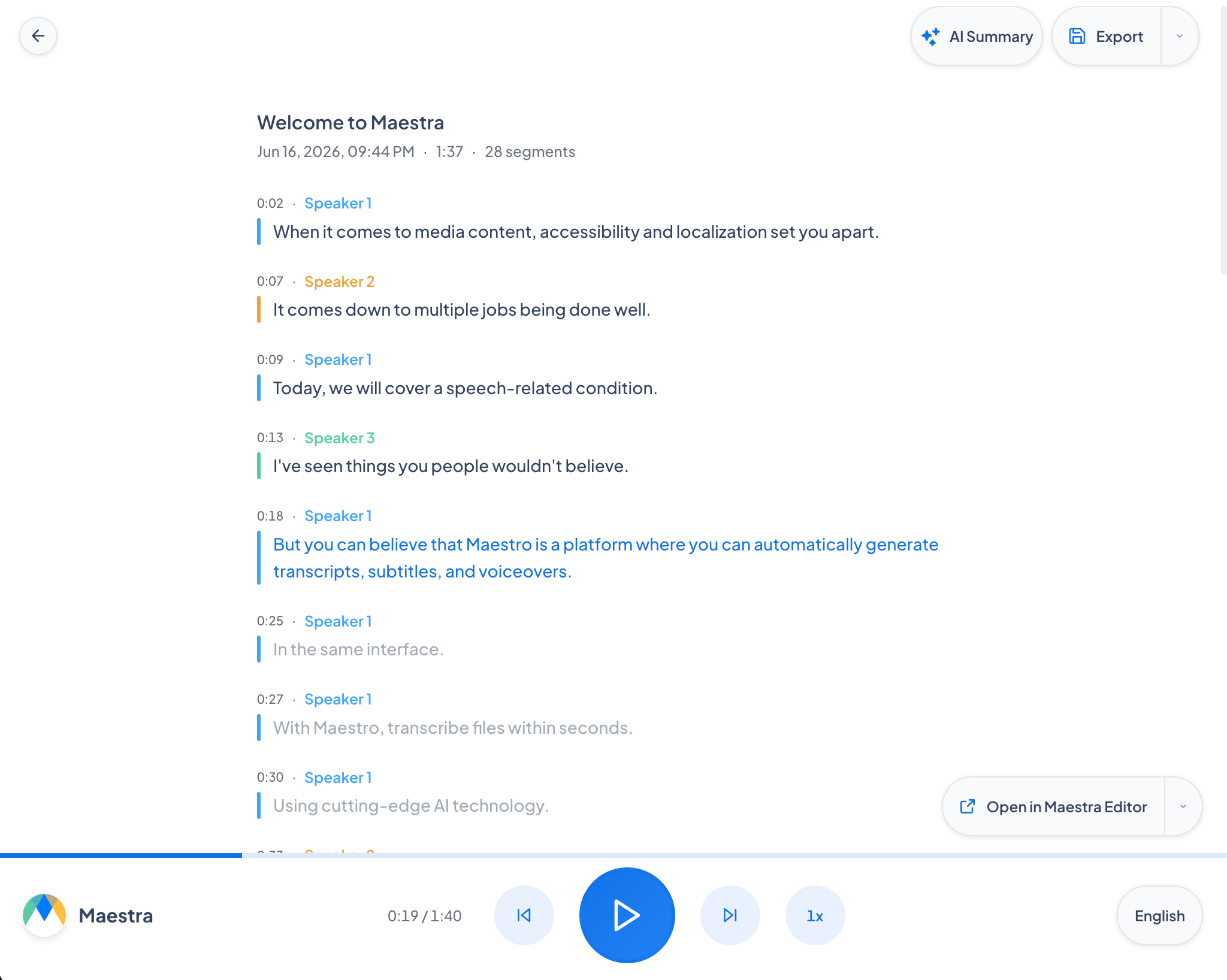
Opening a recording shows its transcript alongside a playback bar (the player appears only when audio was saved). From here you can:
- Play back the audio while the transcript follows along and highlights the current line; click any line to jump to that moment.
- Switch between the source language and any saved translation to view that transcript and hear its audio.
- Generate an AI summary of the session with the AI Summary button.
Edit in the Maestra Editor
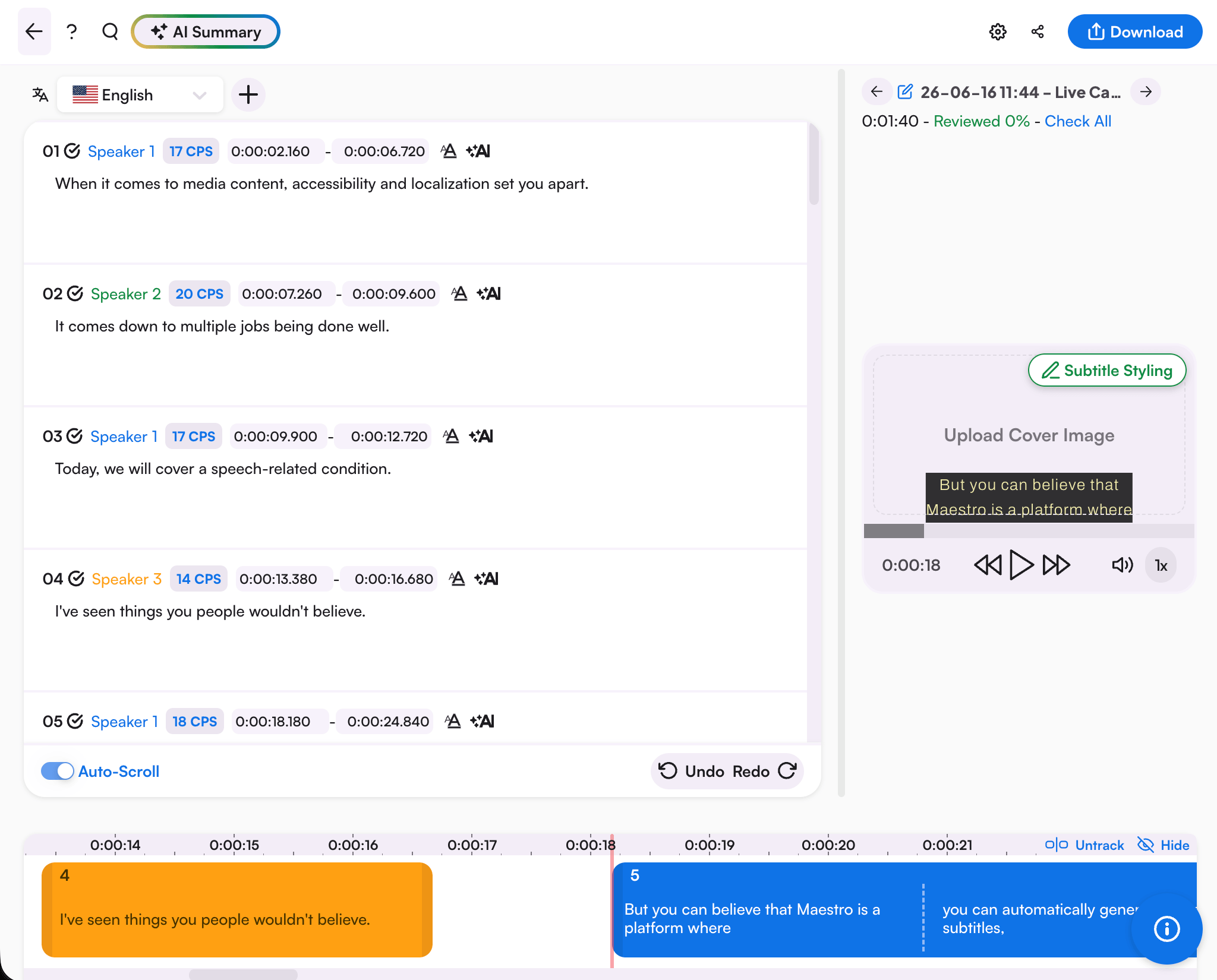
Select Send to Maestra Editor to open the recording in the Maestra App (app.maestra.ai), where you can refine the transcript and use Maestra’s advanced editing, translation, and AI tools.
Export a transcript
Use the Export menu on a recording to download it:
- TXT: plain-text transcript.
- DOCX: Word document.
- Audio: download the recorded audio, available only when Save audio was on for the session.
Frequently asked questions
How do I stop saving my sessions?
Turn off Save transcript in Settings. To keep the transcript but skip the audio, turn off Save audio only.
Can I save the audio without the transcript?
No. Save audio requires Save transcript to be on. If you turn Save transcript off, Save audio is turned off automatically.