Microsoft Teams Integration
Real-time AI captions and translation for your Teams meetings, in 125+ languages, with native side-panel and meeting-tab integration.
Overview
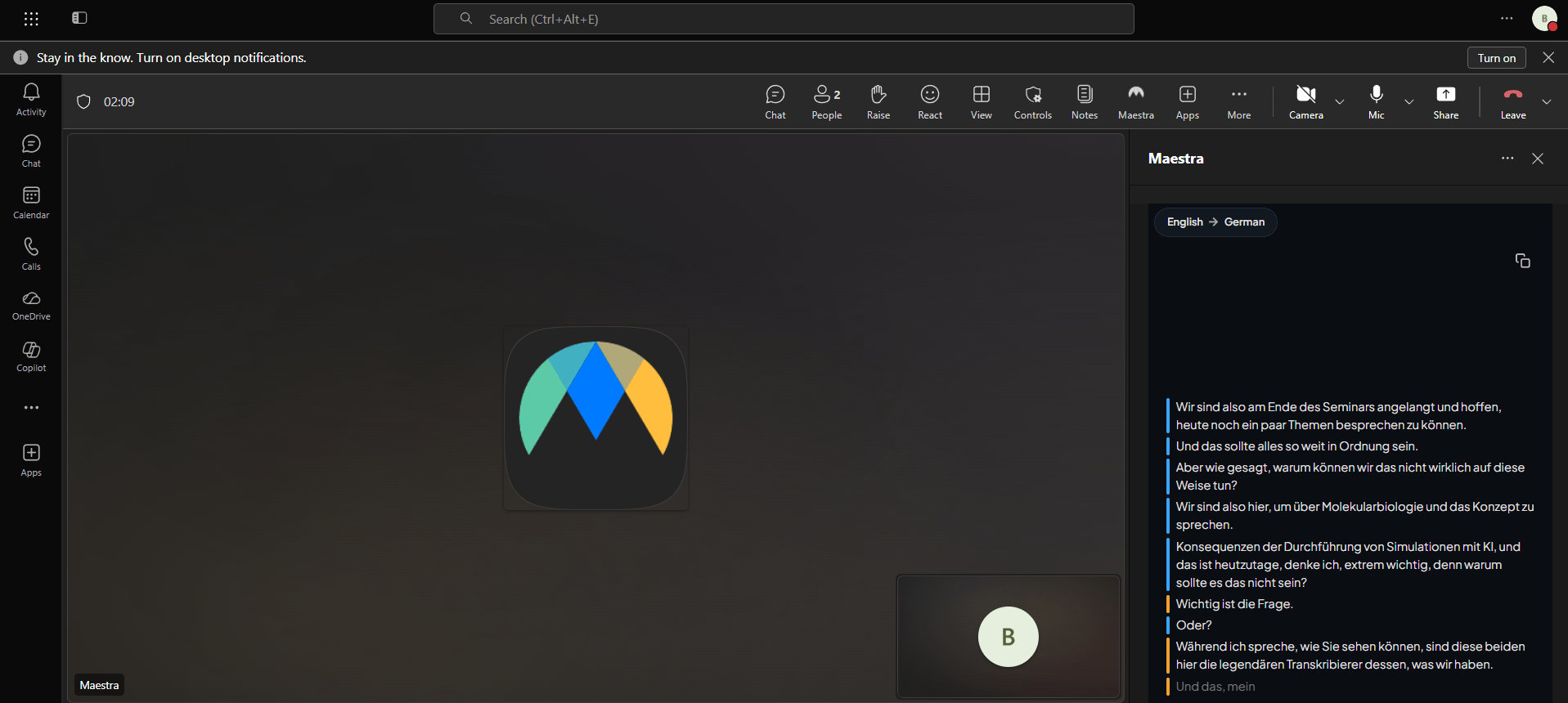
Maestra for Microsoft Teams brings real-time transcription and translation directly into your Teams meetings. The Maestra bot captures meeting audio and produces live captions in 125+ languages, displayed in a Teams side panel, a meeting tab, or a shareable link for guests.
Setup happens in two layers. First, an admin for your Microsoft 365 tenant grants Maestra organization-wide permissions and uploads the Maestra app package to the Teams Admin Center. After that, individual users install the app from Teams in one click, and it works automatically inside their meetings.
Prerequisites
Before you begin, ensure that:
- You have a Microsoft 365 Global Administrator account (required to grant Maestra org-wide consent).
- Your organization has an active Maestra account with Real-Time credits.
- Your users are licensed for Microsoft Teams.
- Your tenant allows custom Teams applications (the "Upload custom apps" setup policy is enabled).
1. Admin Onboarding
Before anyone in your organization can use Maestra inside Teams, a tenant admin needs to grant the bot permissions and link the integration to a Maestra account.
Open the Maestra integrations page
Sign in to live.maestra.ai with your Maestra admin account, then go to Settings → Integrations and click Microsoft Teams.
Grant tenant-wide permissions
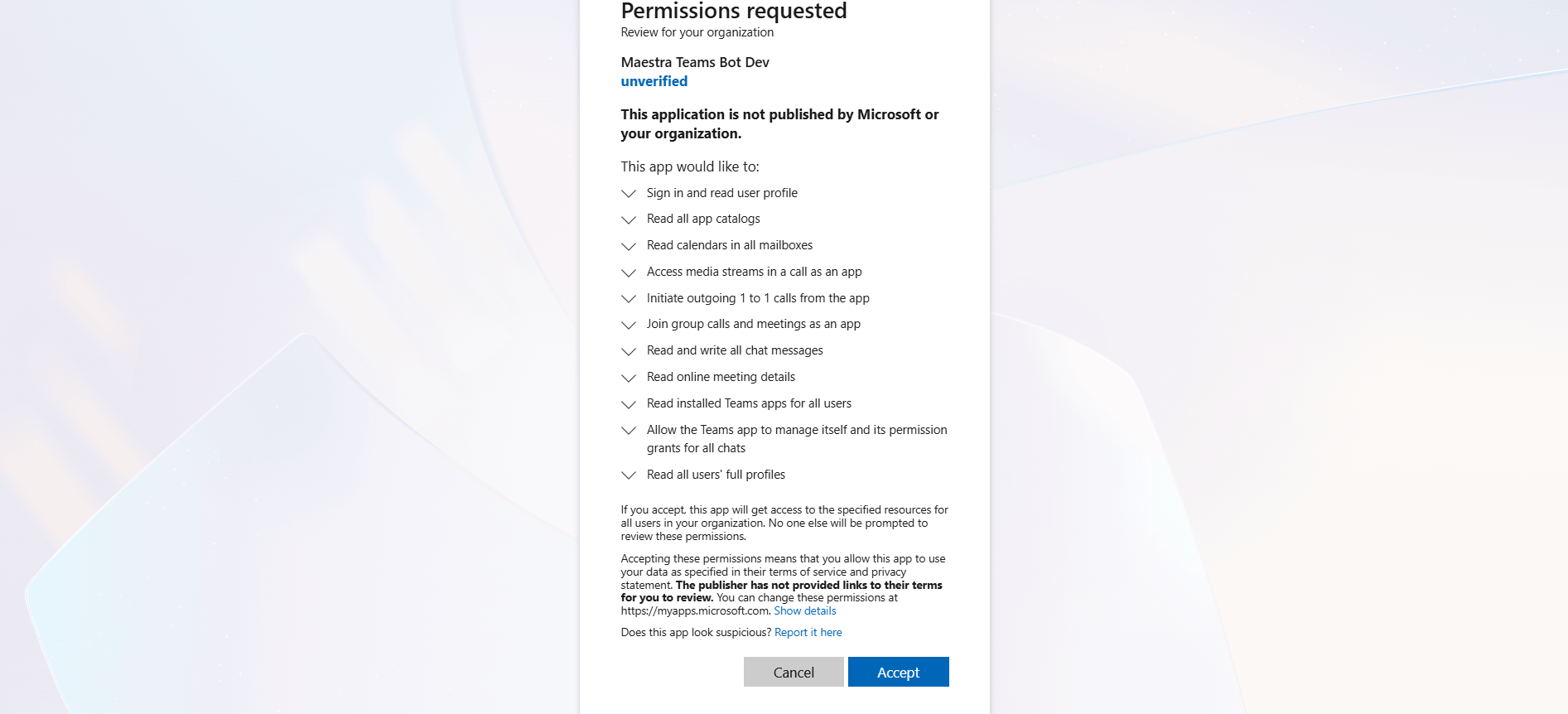
Click Integrate Teams for your Org. You will be redirected to Microsoft's admin consent page. Sign in as a Global Administrator (or another admin with permission to grant org-wide consent) and approve the requested permissions.
Return to Maestra
After consent, Microsoft redirects you back to Maestra. The Microsoft Teams integration card flips to a green Connected status. The button now reads Download Maestra for MS Teams, the app package you will upload to your tenant in the next step.
2. Upload the App to Your Tenant
Microsoft Teams apps are distributed as .zip packages. The Maestra package is pre-configured for your tenant after consent.
Download the app package
On the Maestra integration card (now showing Connected), click Download Maestra for MS Teams. Save the file somewhere you can find it, typically your Downloads folder.
Open the Teams Admin Center
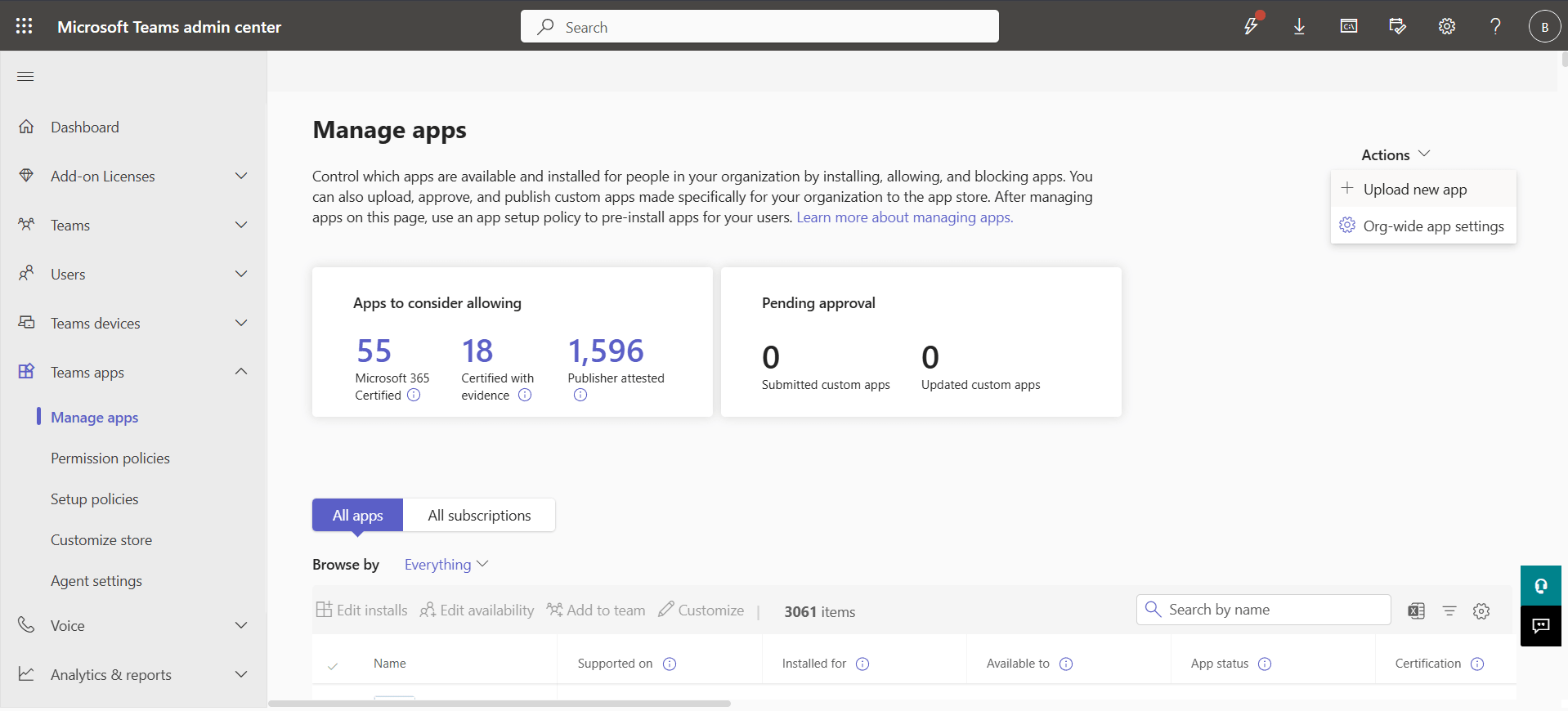
Sign in to admin.teams.microsoft.com with the same admin account you used for consent. Go to Teams apps → Manage apps.
Upload the package
Click Upload new app, choose Upload on the dialog, and select the Maestra app package file you just downloaded. Microsoft will validate and add the app to your tenant's catalog.
Allow the app
Find Maestra in the apps list and confirm its status is Allowed. If your tenant uses app-permission policies, make sure Maestra is included in the policy assigned to the users who will use it.
3. Install for Users
Once the app is in the tenant catalog and allowed, individual users can add it to their Teams in one click.
Open the Teams app store
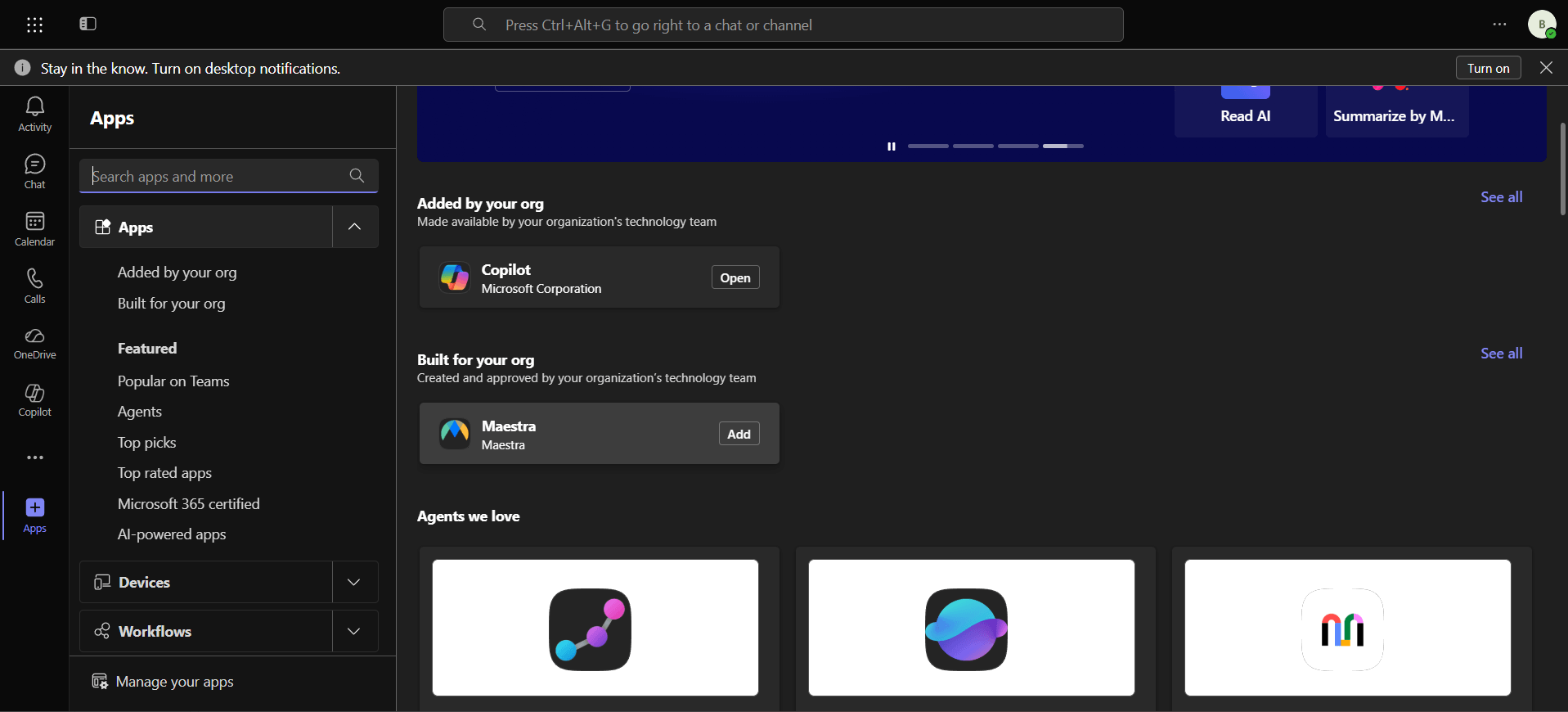
In Teams, click Apps in the left navigation rail. Search for Maestra in the search box, or browse the Built for your org section.
Add the app
Click the Maestra app, then click Add. Maestra is now pinned in the user's personal Teams.
4. Use It in a Meeting
Automatic captioning
When the Maestra app is installed and Auto-join is enabled in the user's Maestra personal tab (it is on by default), the bot joins every meeting hosted by that user automatically and starts captioning a few seconds after the meeting begins.
In-meeting side panel
During an active meeting, click Maestra in the meeting toolbar (or open it from the Apps menu) to reveal a side panel. The panel shows the live transcript, a language picker for what you see, and a theme that follows your Teams light/dark mode.
Meeting details tab
If Maestra has been added as a meeting tab, attendees can also open it from the Maestra tab in the meeting details, a wider view that is useful before, during, or after the meeting.
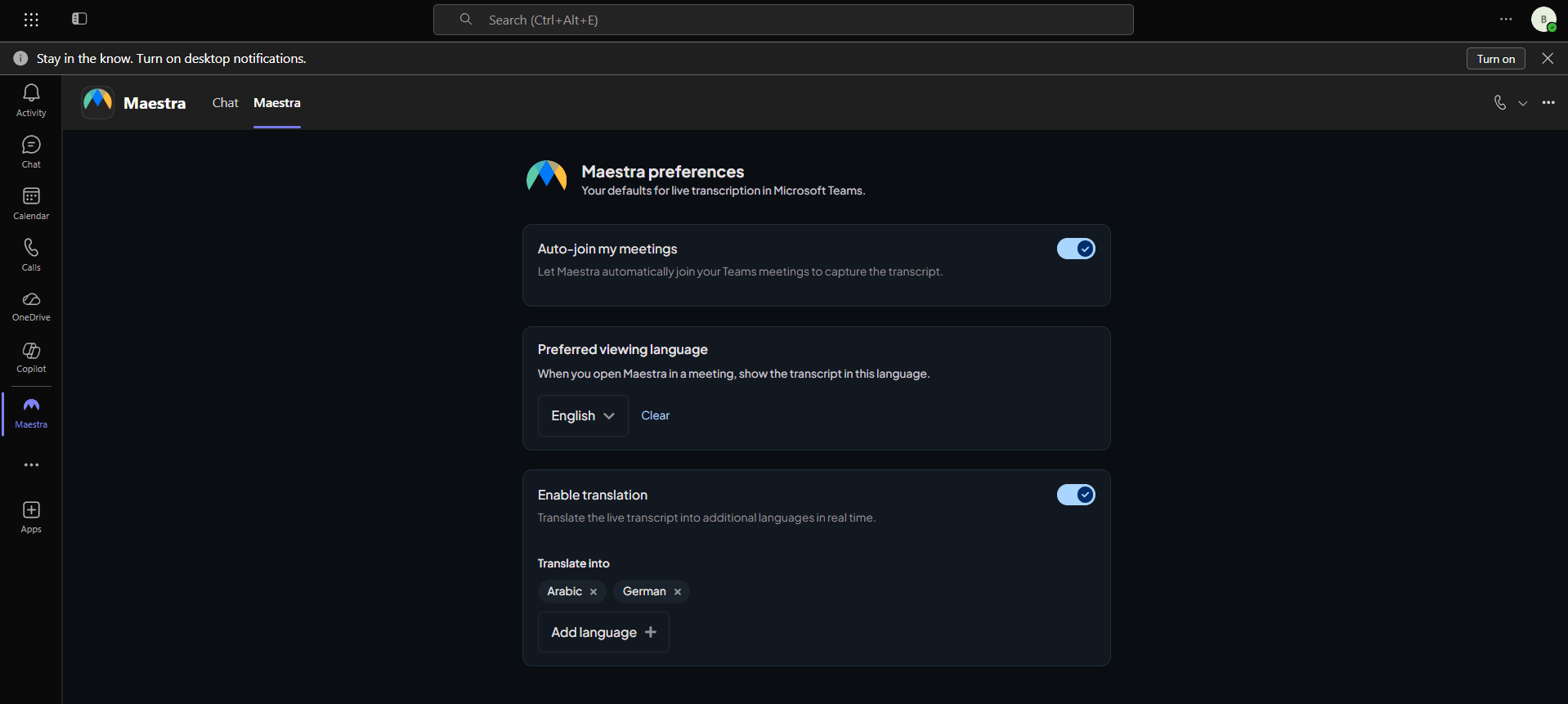
Personal tab — settings
Open Maestra from the left rail to see the personal tab. From here you can:
- Toggle Auto-join for meetings you host.
- Set your preferred viewing language, used to auto-pick a target in the side panel and meeting tab.
- Enable translation and pick one or more target languages. Every selected language is generated in real-time during the meeting.
5. Instant Join
Auto-join brings Maestra into meetings you host automatically. Instant join covers everything else: start captioning on the spot in an ad-hoc Meet now meeting, or in any meeting where Maestra is not already running, without scheduling anything in advance.
Add Maestra to the meeting
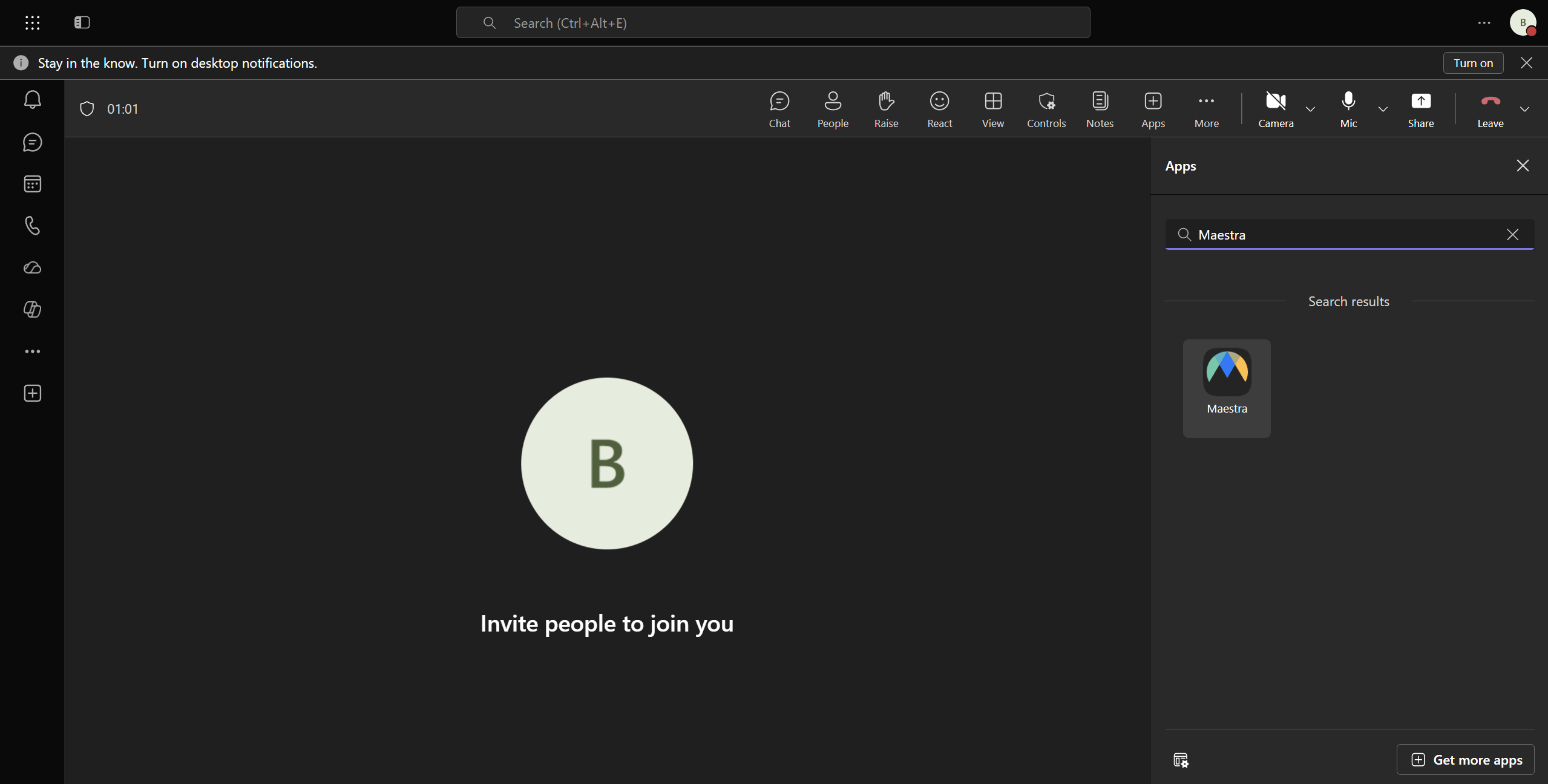
In the active instant meeting, open the Apps menu (or the + in the meeting toolbar), choose Maestra, and open its side panel.
Maestra joins this meeting
When the panel opens and no session is running yet, Maestra asks the bot to join this specific meeting right away. A Starting transcription… message appears while the bot is admitted.
Captions appear automatically
Once the bot is in, the live transcript replaces the message in the same panel, with no refresh or reopening needed. From there the session behaves exactly like an auto-joined one, including the viewing-language picker.
Troubleshooting
"Microsoft Teams Integration" still shows "Not Connected" after I consented
The redirect back from Microsoft can take a few seconds. If the page still shows Not Connected after the spinner disappears, check the toast for a Microsoft error message and retry the consent flow. If the error persists, make sure you are signing in as a tenant admin with rights to grant org-wide consent.
Users cannot find Maestra in the Teams app store
In the Teams Admin Center → Manage apps, confirm Maestra's status is Allowed, and that the app-permission policy assigned to those users includes Maestra. Org-wide propagation can take up to an hour after upload.
The bot did not join my meeting
Open Maestra from the Teams left rail and confirm Auto-join is enabled. Auto-join applies only to meetings you host. For meetings hosted by others, ask the host to install Maestra, or pin the Maestra meeting tab and start the session manually from there.
No captions appear in the side panel
Make sure participants are unmuted, the meeting has been running for at least a few seconds (the bot needs a moment to admit and start streaming audio), and your Maestra account has sufficient credits at app.maestra.ai.
Disconnect
Disconnecting Maestra from Teams takes two steps: revoke the app's tenant permissions, and remove the app package from your tenant.
Step 1: Revoke permissions in Microsoft
In the Microsoft Entra admin center, go to Identity → Applications → Enterprise applications, find Maestra, and remove it. This revokes Maestra's access to your tenant immediately.
Step 2: Remove the app from Teams
In the Teams Admin Center → Manage apps, find Maestra and click Delete. End users will no longer see the app in Teams.