Dictionary
Improve transcription accuracy with custom terms, and automatically swap mis-heard words for the correct text.
Transcription Dictionary
Add important words, phrases, brand names, or technical terms that you expect in the audio. These help the model recognize and transcribe them more accurately, so a commonly mis-transcribed term is more likely to come out exactly as you spelled it.
Add terms
- Go to Settings → Dictionary and find the Transcription Dictionary section.
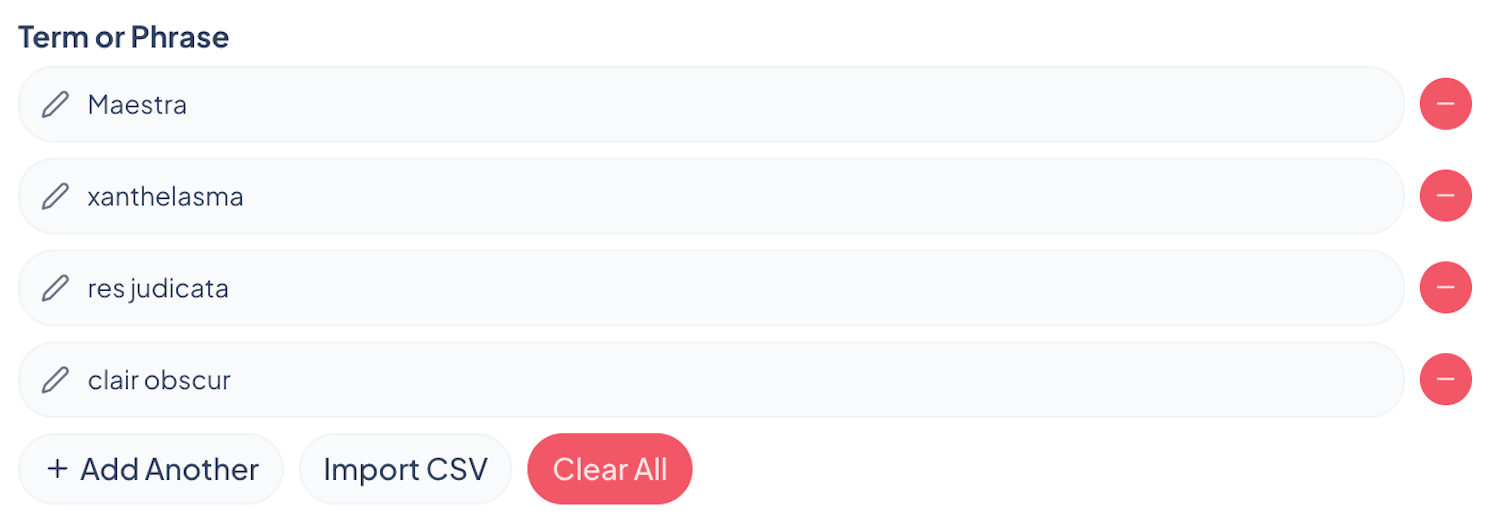
- Enter a word or phrase in the Term or Phrase field.
- Use Add Another for more terms, one per row.
Import from a file
To add many terms at once, click Import CSV and choose a file. Existing terms are kept, and duplicates are skipped automatically.
What to add
Brand & product names
Company names, product lines, or app names, anything spelled in an unusual way.
Acronyms & initialisms
Industry abbreviations the model might spell out or misread.
Technical & rare terms
Field-specific jargon, scientific terms, part numbers, or rare and invented words the model might not know.
People & place names
Speaker names, team members, or locations that are easy to mishear.
To start over, click Clear All to remove every term in the Transcription Dictionary.
Word Replacements
Word Replacements automatically replace a transcribed word or phrase with text you specify. Use this to fix a term that is consistently mis-heard, standardize spelling, or substitute one word for another in the captions.
- Enter the word or phrase to find in Word or Phrase to Replace.
- Enter what it should become in Replace With.
- Use Add Another for more rows.
Frequently asked questions
What is the difference between the Transcription Dictionary and Word Replacements?
The Transcription Dictionary nudges the model toward recognizing terms while it transcribes, so a name or piece of jargon is more likely to be heard correctly. Word Replacements run afterward: they swap a word or phrase in the finished caption for the exact text you specify.