Dubbing
Have a natural-sounding voice speak your translations out loud, live, while captions stay on screen.
Set up dubbing
Add at least one translation language to dub into.
Open the Dubbing tab. In an event, each translation language shows as its own row with a toggle.
Switch on the toggle for each language you want dubbed.
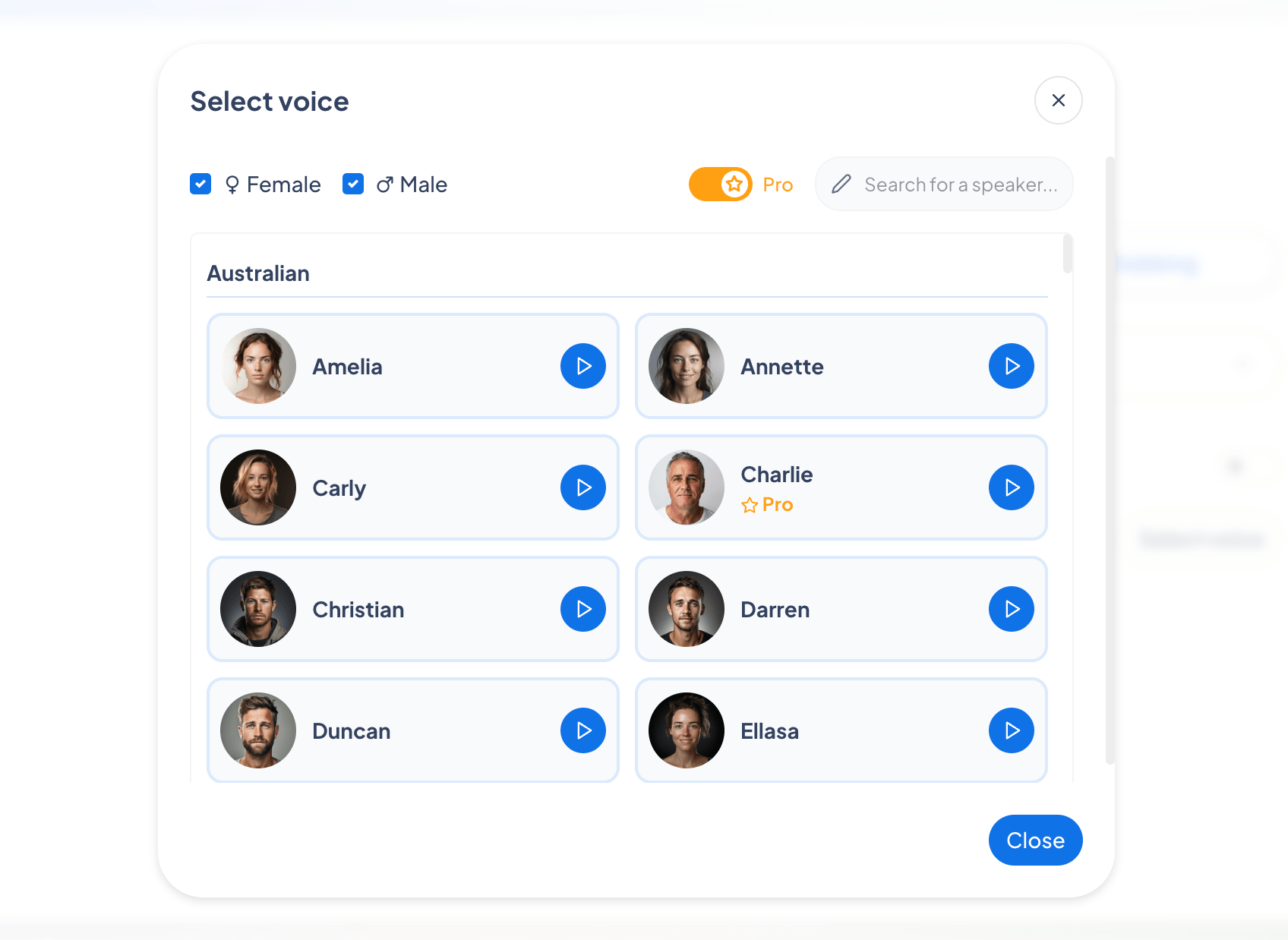
Click the voice pill on a language row to open the voice picker, then choose a voice. You can filter by male or female, toggle Pro voices, and search voices by name.
Voice cloning
Instead of a preset voice, voice cloning reproduces the speaker’s own voice and uses it to read the translation, so the dubbed audio sounds like the original speaker talking in the target language.
To turn it on, switch on Voice cloning next to a language’s voice. The clone replaces the preset voice for that language.
There’s nothing to record or upload. Maestra builds the clone automatically from the speaker’s voice in the first seconds of speech, keeps refining it as they keep talking, and switches the dubbing over to it once it’s ready.